
More settings are available in the app
How to defeat spammers and trolls
What for: To keep your peace of mind.
TikTok lets you filter out posts containing specific words, phrases, or hashtags in their captions. This lets you hide unwanted posts.
To enable keyword filtering for posts:
- Go to the Profile tab;
- Click the gear icon;
- Go to Content preferences;
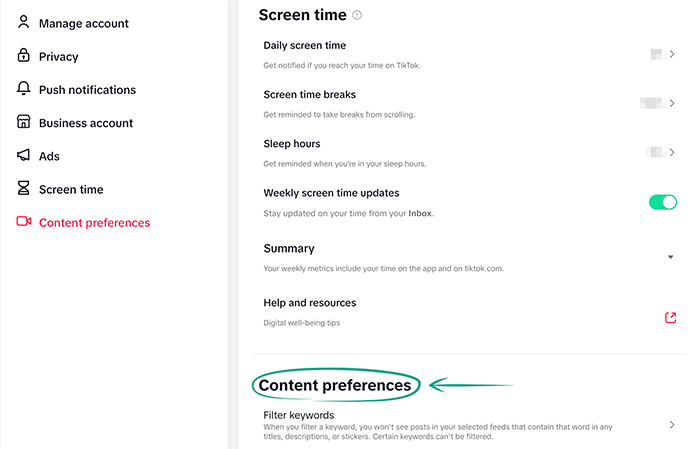
- Click Filter keywords;
- Click Add keyword;
- In the relevant field, enter the word you wish to filter out of your feeds;
- To filter posts that mention the word out of all feeds, click Select all. To selectively filter feeds, select one or more of the following:
- For you;
- LIVE;
- Following;
- Friends.
- Click Save.
Note: The filter is not case-sensitive. Words in lowercase will match those in uppercase, and vice versa.
What for: To avoid unpleasant people.
If a TikTok user is leaving offensive comments, sending you spam, or is just being annoying, you can block this person. After that, they will not be able to watch your videos or send you messages. If you change your mind, you can always unblock the user.
Note: The user will not be notified of the block. Blocked users will be removed from your followers and no longer be able to find your profile or view your posts. You will automatically unfollow them and no longer be able to message or mention each other in comments. However, you might still see these users in multi-guest LIVEs, Duets posted by others, or shared group chats.
To block someone on TikTok:
- Open the profile of the user you wish to block;
- Click the three dots to the right of the follower's profile image;
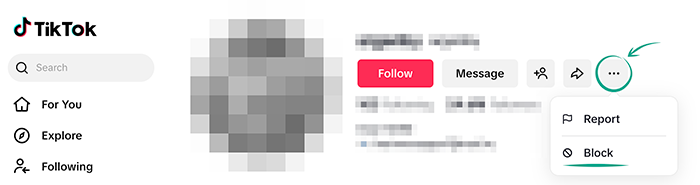
- Click Block;
- Click Block again to confirm your selection.
To unblock a user:
- Go to the Profile tab;
- Click the gear icon;
- Go to the Privacy section;
- Click Blocked accounts;
- Click Unblock next to the user you want to unblock.
Alternatively, you can unblock a user directly from their profile.
- Go to the profile of the user you want to unblock;
- Click the three dots to the right of the follower's profile image;
- Click Unblock;
- Click Unblock again to confirm your selection.
What for: To remove irrelevant comments.
If you continue to see unpleasant messages or ads under your videos, you can disable comments for individual posts.
To disable comments for a video before posting:
- After your video is uploaded, go to Settings;
- Click Show more;
- In the Allow users to section, turn off Comments;
- Click Post.
To disable comments for an already posted video:
- Go to the Profile tab;
- Open the video that you would like to disable comments for;
- Click the three dots to the right of your profile name;
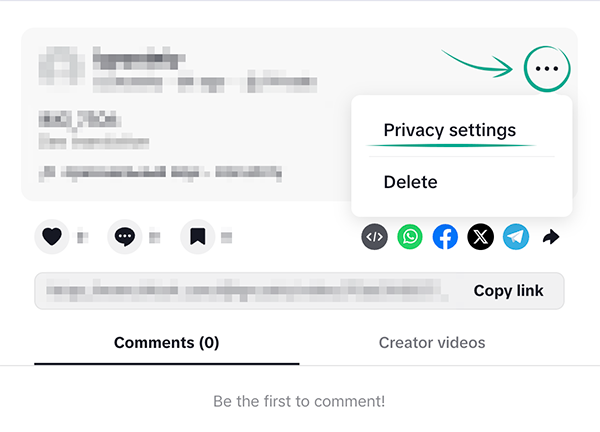
- Select Privacy settings;
- Disable Allow comments;
- Click Done.
What for: To prevent others from using your videos for their own purposes.
By default, any TikTok user can reuse your content: they can create a Duet or Stitch their video with yours, make a Sticker from your post, or add it to their Story. However, your haters can abuse this feature to insult you or make fun of you. In addition to that, all of that creator's followers will see your video. It could be anyone, including those that you would rather not share your posts with.
To prevent the reuse of your content for a specific video that has already been posted:
- Go to the Profile tab;
- Open the video that you would like to disable comments for;
- Click the three dots to the right of your profile name;
- Select Privacy settings;
- Turn off Allow reuse of content;
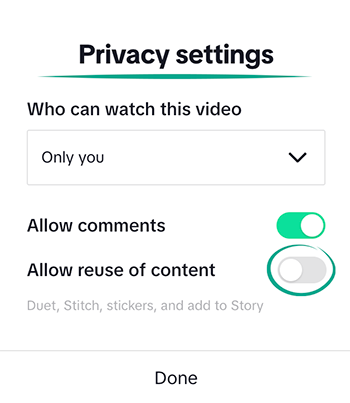
- Click Done.
To do this before posting the video:
- After your video is uploaded, go to Settings;
- Click Show more;
- In the Allow users to section, turn off Reuse content;
- Click Post.
Note: The TikTok Web interface lets you manage content reuse settings for individual videos only. To configure this for all posts, follow the mobile app guide for Android or iOS.
How to keep corporations out of your business
What for: To prevent TikTok from tracking your activity outside the platform.
To personalize ads, TikTok always considers your in-app activity, such as videos you've watched or posts you've liked. However, the platform may also receive data from third-party services and advertisers. Disable personalized ads if you wish to limit the use of off-platform information. In this case, TikTok will only consider your in-app activity, and the ads you see will be more generic.
To disable personalized ads and delete the off-platform data collected by the app:
- Go to the Profile tab;
- Click the gear icon;
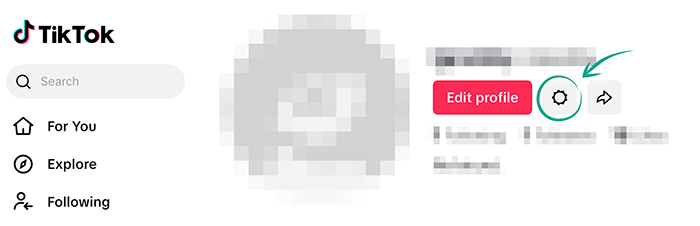
- Go to the Ads section;
- Turn off Personalized ads. This action will also stop TikTok from collecting data from third-party services and advertisers;
- To delete previously collected activity data, go to the Ads section and click Clear off-TikTok data;
- Click Confirm.
Note: Even after disabling personalization and deleting your data, ads will still appear on TikTok, but they will be less relevant. It may take up to 30 days to delete the off-TikTok activity data that has already been collected. Note that if you delete your data without disabling personalized ads, TikTok will resume collecting information from advertisers.
If you prefer not to disable ad personalization entirely but want to ensure that your interaction with a specific company does not affect the ads you see, you can block data collection from individual advertisers. To disable data collection by individual advertisers in TikTok:
- Go to the Profile tab;
- Click the gear icon;
- Go to the Ads section;
- Click Disconnect advertisers;
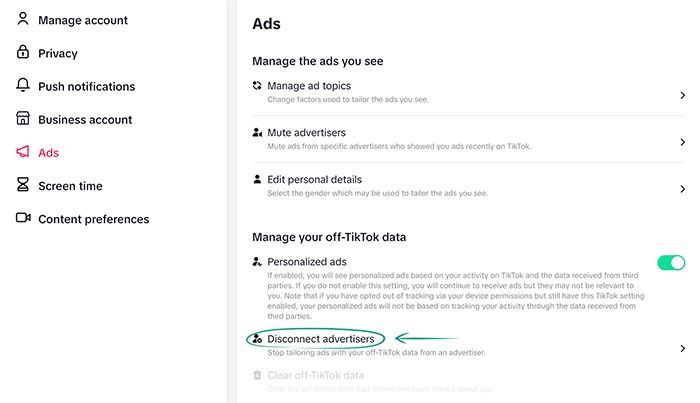
- Turn off the toggles next to the advertisers you want to exclude;
- In this same section, you can view a list of advertisers you have disconnected. Click Advertisers you have disconnected.
How to hide from prying eyes
What for: To keep your personal information private.
Certain videos may contain information that you do not want to share. Of course, it would be best to not upload such videos to TikTok at all. However, if you need to do this for some reason, you can make the video private so that no one can see it except you.
To change the settings for a video that has already been posted:
- Go to the Profile tab;
- Click the three dots icon to the right of your profile name;
- Select Privacy settings;
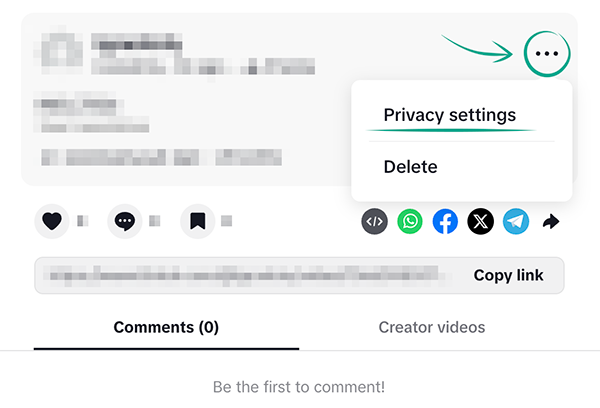
- Under Who can watch this video, select Only me;
- Click Done.
To hide a new video before posting:
- After your video is uploaded, go to Settings;
- Under Who can watch this video, select Only me;
- Click Post.
What for: To hide your data from strangers.
By default, your posts are visible to all TikTok users. That could be anyone including those you would rather not share your personal information with. To keep your info hidden from others, you can make your profile private so that only approved followers can see your videos.
To make your profile private:
- Go to the Profile tab;
- Click the gear icon;
- Go to the Privacy section;
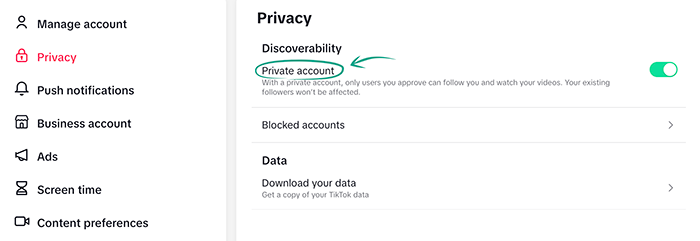
- Turn on Private account.
Note: When your profile is public, anyone can follow you. With a private profile, anyone who wants to follow you must send a request and wait for your approval. If you switch to a private account, your existing followers will still be able to see your videos. If you switch your account from private to public, all pending follow requests will be approved automatically.
You can only remove a user from your followers by blocking them.
- Go to the Profile tab;
- Click the number of followers under your profile image;
- Click the follower you want to remove;
- Click the three dots to the right of the follower's profile image;
- Click Block;
- Click Block again to confirm your selection.
How to keep your data from being stolen
What for: To back up your important data.
TikTok collects and stores a lot of information about you. The app contains data that you have specified in your profile as well as information about your activity (for example, likes and purchase history) and all of your settings. If your account is stolen or blocked, this data will be lost. To prevent this from happening, you can request an archive of your data from TikTok and download it to your phone or computer.
- Go to the Profile tab;
- Click the gear icon;
- Go to the Privacy section;
- Select Download your data;
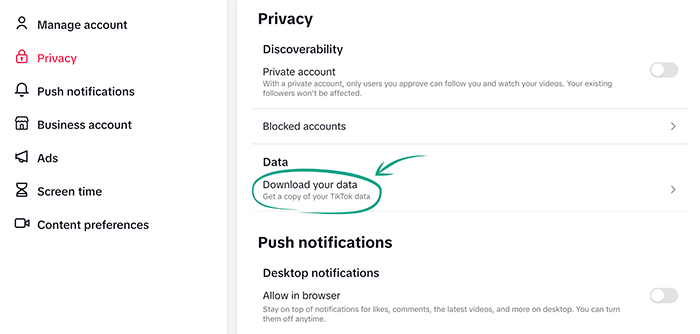
- You'll be prompted to download all available data by default. If you want to select specific categories, click All data, then Custom, and select the items you need:
- Your activity;
- Income+ Wallet;
- Likes and favorites;
- Direct Messages;
- Location reviews;
- Profile and settings;
- Posts;
- TikTok LIVE;
- TikTok Shop.
- Click Request data.
Note: It may take up to four days for the ZIP archive to appear after your request. You will receive a notification as soon as it is ready.
To download the archive:
- Go to the Profile tab;
- Click the gear icon;
- Go to the Privacy section;
- Select Download your data;
- Go to Download data;
- Click Download;
- Click Send Code;
- Enter the code sent to your e-mail or phone. After the code is verified, your download will start automatically.
How to improve your TikTok experience
What for: To control the amount of time you spend in TikTok.
If you're concerned about spending too much time on TikTok, you can set a daily screen time limit. When the limit is reached, the app will notify you and prompt you to enter the passcode 1234 to continue. This passcode is universal and cannot be changed by the user, so the feature serves more as a reminder to take a break.
To set a time limit:
- Go to the Profile tab;
- Click the gear icon;
- Select Screen time;
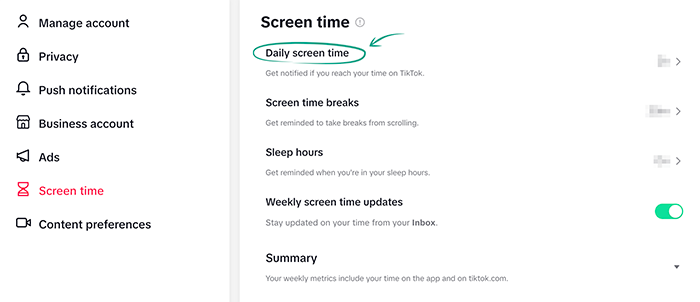
- Select Daily screen time;
- You can set a separate limit for each day or use the same limit for every day. Select one of the following items:
- Set the same limit every day;
- Set a custom limit per day.
- Select your daily time limit from the list.
- Click Other to specify an exact period.
- Click Done. After your time limit is reached, you will receive a notification. To continue using the app, you will need to enter the passcode 1234 displayed on the screen.
What for: To take breaks on time.
This feature helps prevent excessive TikTok use. It's easy to lose track of time when you've been scrolling through your feed non-stop for a long time. Break reminders display an in-app notification suggesting you take a pause to rest, switch to other tasks, or simply give your eyes a break from the screen.
To activate the reminders:
- Go to the Profile tab;
- Click the gear icon;
- Go to Screen time;
- Click Screen time breaks;
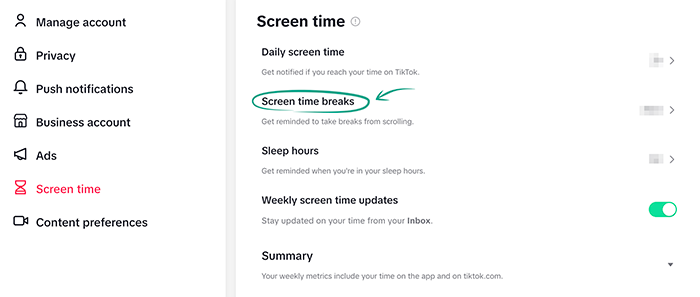
- Turn on Schedule screen time breaks;
- Select an interval that works for you:
- 10 minutes;
- 20 minutes;
- 30 minutes.
- Custom: Set an interval manually and click Done.
What for: To avoid distractions.
If you want to disable push notifications fully or partially, you can do so through your device settings. You can also set a custom schedule for push notifications within the app.
To disable push notifications completely:
- Go to the Profile tab;
- Click the gear icon;
- Go to the Push notifications section;
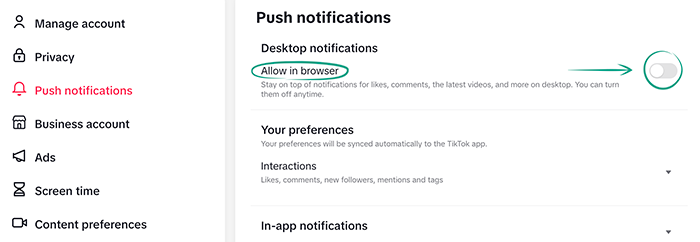
- Turn off Allow in browser.
What for: To temporarily get rid of intrusive or irrelevant ads from specific companies.
On TikTok, you can manage what ads you see. Sometimes ads from certain companies may feel too intrusive or irrelevant to you. In this case, you can hide them.
To hide an advertiser:
- Go to the Profile tab;
- Click the gear icon;
- Go to the Ads section;
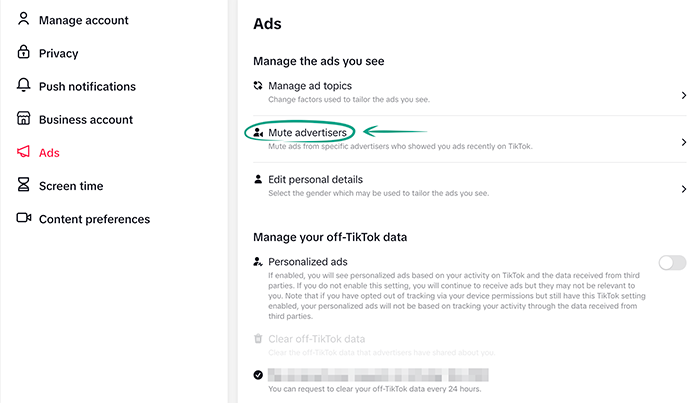
- Click Mute advertisers;
- Turn off the toggles next to the advertisers you want to exclude;
- Click Confirm.
The list of advertisers you've already hidden appears in the same settings section below.
Note: It is not possible to hide an advertiser permanently. Ads from hidden advertisers will stop appearing for only 28 days, and then ads from these companies may reappear.
What for: To go to bed on time.
Sleep mode helps you reduce TikTok usage at night. This feature mutes push notifications and reminds you when it's time to stop watching videos.
To turn on sleep mode:
- Go to the Profile tab;
- Click the gear icon;
- Select Screen time;
- Click Sleep hours;
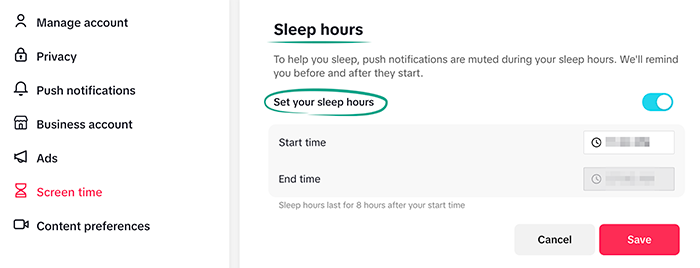
- Select Set your sleep hours;
- Under Start time, set the time you want sleep mode to start; The End time will be set automatically 8 hours after the start time;
- Click Save.
What for: To keep track of the time you spend on TikTok.
You can enable weekly updates on TikTok to receive notifications about your time spent in the app. This tool helps you monitor your habits and reduce your overall screen time on TikTok.
- Go to the Profile tab;
- Click the gear icon;
- Go to Screen time;
- Turn on Weekly screen time updates.
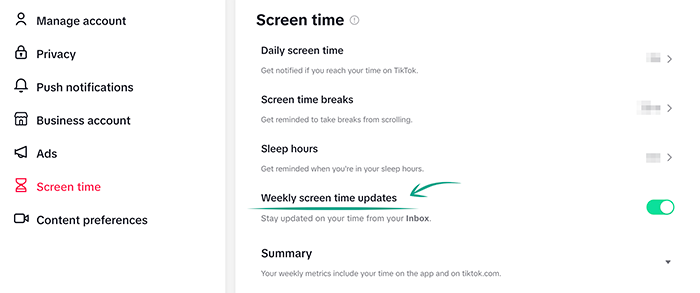
Note: You will receive a weekly notification with your statistics in your TikTok Inbox. You can check your TikTok screen time statistics at any time in Screen time by clicking Summary.
What for: Less distraction.
By default, TikTok will send you in-app notifications if anyone liked your video or commented on it, and for recommendations, live broadcasts, and your friends' new posts. Constant notifications can be really annoying and distracting. You can change your notification settings in the TikTok Web version, and the changes will automatically sync to your phone.
To disable in-app notifications:
- Go to the Profile tab;
- Click the gear icon;
- Go to the Push notifications section;
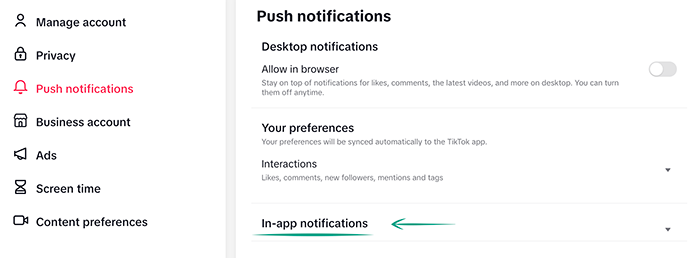
- Click In-app notifications;
- Disable notifications that you do not want:
- Likes;
- Comments;
- New followers;
- Mentions and tags;
- Reposts.