

How to keep your account from getting hacked
What for: So you don't get hacked.
If you use a short and simple password, cybercriminals can guess it and hijack your account. A long and complex password is more secure. Use a strong password that:
- Is at least 8 and up to 20 characters long;
- Contains lowercase and uppercase letters, numbers, and special characters ($, @, etc.);
- Is not an actual word or easy-to-guess phrase;
- Is not the same as your passwords for any other accounts;
- Does not consist of information that strangers could easily find out (your name, date of birth, pet's name, and so forth — or those of your friends or relatives).
To change your password:
- Open the menu by tapping the profile icon in the upper left corner of the screen;
- Open Settings and privacy;
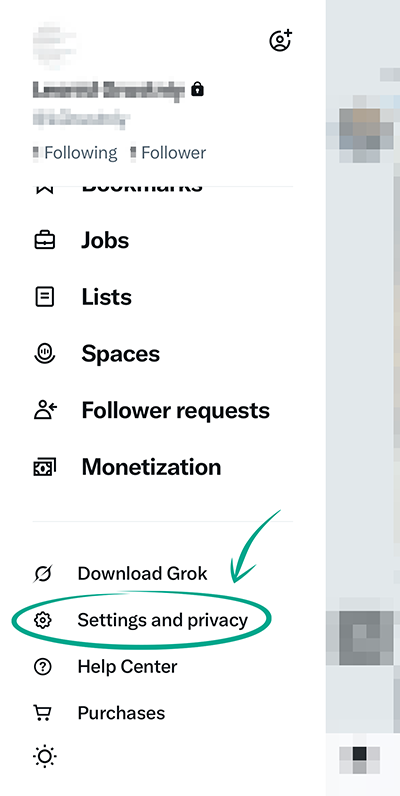
- Select Your account;
- Tap Change your password;
- Enter the current password for your X(Twitter) account;
- Enter a new strong password twice;
- Tap Done.
What for: So you definitely don't get hacked.
X(Twitter) can prompt you to enter an additional one-time code every time you log in to your account. If cybercriminals attempt to hack your account, they will not be able to log in without this code. The code can be received in different ways: via a text message (SMS) or using an authentication app.
To enable two-factor authentication:
- Open the menu by tapping the profile icon in the upper left corner of the screen;
- Open Settings and privacy;
- Select Security and account access;
- Select Security;
- Under Two-factor authentication, select the option with the same name;
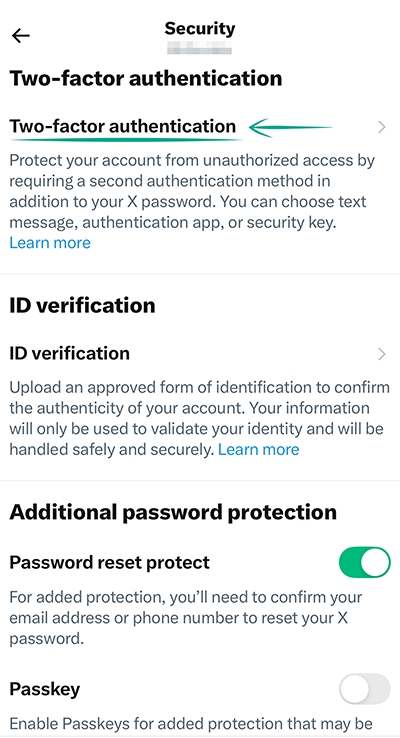
- Select the authentication method:
- Text message — receive a one-time code via SMS;
- Authentication app — a one-time code is generated in a dedicated app such as Kaspersky Password Manager (subscription required), Authy, or Google Authenticator;
- Security key — a one-time code is generated using a USB authorization device such as YubiKey;
- Follow the on-screen directions to configure the selected verification method;
- Save your one-time backup code before finishing the setup. Tap Get Backup Code below Done. Copy it and store it in a safe place. You need this code to access your account if you lose your phone;
- You can get the code later by selecting Backup code in the Additional methods section.
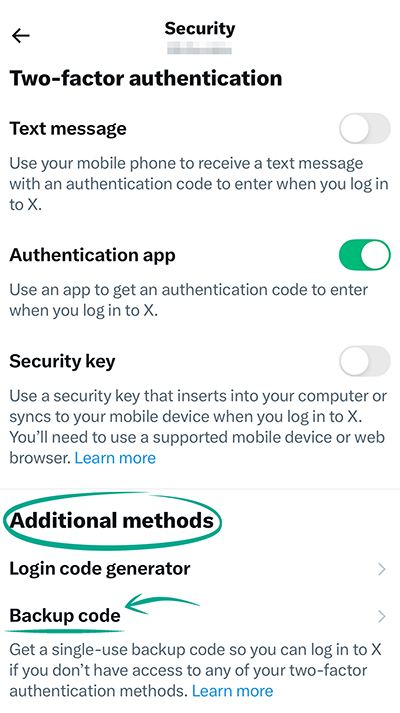
If you choose Authentication app, you'll be able to generate one-time codes both in the authentication app on your device and right in the X(Twitter) mobile app. Two-factor authentication will show a new option, Login code generator. Tapping this opens a new screen with a one-time code that's updated every 30 seconds.
Please note: This option only appears when you enable two-factor authentication in the mobile app. If you used the web-based application to enable it, the mobile app will not show the option to generate codes.
You can use a hardware security key on a supported mobile device or the web version of X(Twitter) as the only authentication method without enabling any others.
Downside: If you use SMS-based authentication, X(Twitter) can use the specified phone number for targeted ads.
What for: To maximize account security against hacking.
X(Twitter) supports both password-based and passwordless (passkey) authentication. Selecting this authentication method means you'll be using the built-in unlock options available on your device, such as fingerprint scanning. Biometric authentication methods simplify and speed up the sign-in process. Additionally, if you're not typing in your password manually, attackers cannot see or intercept it.
To enable passwordless authentication:
- Open the menu by tapping the profile icon in the upper left corner of the screen;
- Open Settings and privacy;
- Go to the Security and account access section;
- Select Security;
- Turn on Passkey;
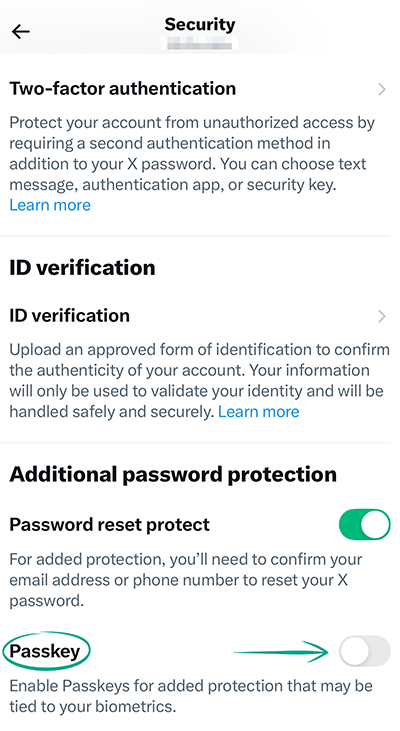
- Enter your password and tap Confirm;
- Tap Create passkey;
- Use the method you've chosen to unlock your device;
- Tap Done.
Downside: If you lose or change your device, you won't be able to sign in with a passkey, and you'll have to use your login and password instead. You may still need the password to sign in on devices where you don't have a passkey, use certain settings, or authorize certain actions.
What for: So no one can change your password without your knowledge.
For added anti-hacking protection, enable extra identity verification when changing your password. If anyone tries to reset your password, X(Twitter) will ask to verify the e-mail address and phone number linked to your account.
To activate the protection:
- Open the menu by tapping the profile icon in the upper left corner of the screen;
- Open Settings and privacy;
- Go to the Security and account access section;
- Select Security;
- Turn on Password reset protect;
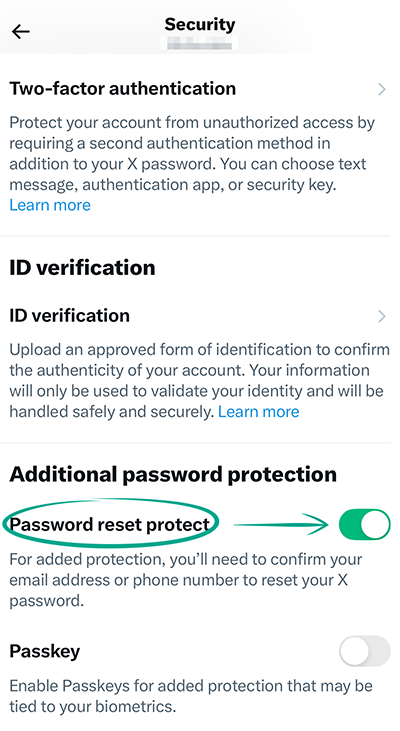
- Enter your account password and tap OK.
What for: To make sure that you are the only one who has access to the account.
You can view the history of logins and other activities carried out on behalf of your account. If you detect any suspicious activity, immediately change your password and terminate all active sessions except the current one.
To check account security and terminate suspicious X(Twitter) sessions:
- Open the menu by tapping the profile icon in the upper left corner of the screen;
- Open Settings and privacy;
- Select Security and account access;
- Tap Apps and sessions;
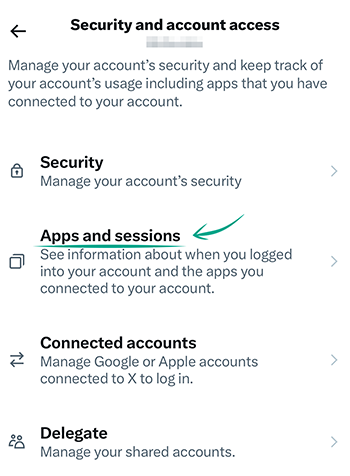
- On the browser page that opens, tap Sessions;
- Review all active sessions in the window that opens. Tap any one of these to check the sign-in date and time, location, and type of device used;
- You can terminate suspicious sessions one by one. Tap the session and select Log out of the device shown;
- To terminate all active sessions except the current one, tap Log out of all other sessions under Log out of all other sessions;
- In the window that opens, tap Continue.
To only view information about sessions, navigate to Security and account access or Privacy and safety. To check account security via Security and account access:
- Open the menu by tapping the profile icon in the upper left corner of the screen;
- Open Settings and privacy;
- Select Security and account access;
- Tap Apps and sessions;
- On the browser page that opens, select Account access history;
- The window shows the time, location, device, and IP address that were used to sign in to your account.
To check account security via Privacy and safety:
- Open the menu by tapping the profile icon in the upper left corner of the screen;
- Open Settings and privacy;
- Select Privacy and safety;
- Scroll down and select Location information;
- Tap See your X data;
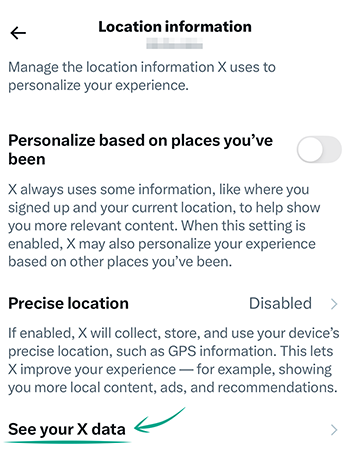
- On the browser page that opens, review your activity history under Account history;
- Open this section and tap Account access history.
Please note: You can terminate suspicious sessions only in Sessions.
What for: To avoid putting all your eggs in one basket.
X(Twitter) can be connected with a Google or Apple account for faster sign-in. However, if an attacker hacks these accounts, they'll get access to your X(Twitter) account too.
To unlink a third-party account:
- Open the menu by tapping the profile icon in the upper left corner of the screen;
- Open Settings and privacy;
- Go to the Security and account access section;
- Select Connected accounts;
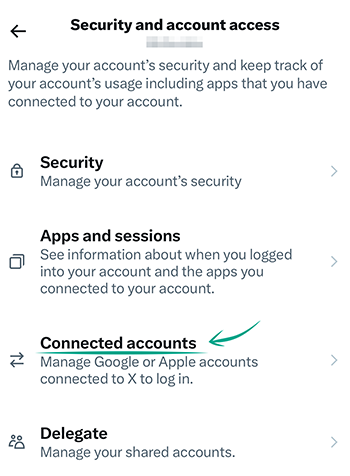
- Tap Turn Off;
- Type in your password and tap Disconnect.
Please note: If you disconnect a third-party account, you won't be able to sign in to X(Twitter) with it. Passwordless authentication, if set up, will remain available. You'll also be able to sign in with your X(Twitter) login and password.
What for: To reduce the risk of being hacked.
A phone number linked to your account can be used to recover access. However, linking your phone number exposes you to SIM swapping where attackers exploit your carrier to gain access to your accounts. If you consider this threat relevant, remove your phone number:
- Open the menu by tapping the profile icon in the upper left corner of the screen;
- Open Settings and privacy;
- Go to the Your account section;
- Tap Account information;
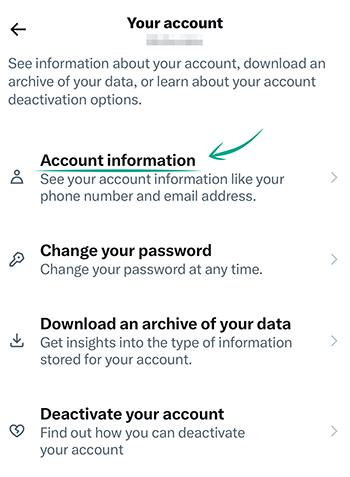
- Tap Phone;
- In the window that opens, tap Delete phone number;
- Follow the on-screen directions to confirm the action. Enter your account password or SMS verification code if asked to.
Downside: Without a linked phone number, you won't be able to recover access to your account via SMS if you lose your password.
How to keep corporations out of your business
What for: To use device resources sparingly and hide from cybercriminals.
X(Twitter) detects the approximate location of users based on the IP address. However, the app can also collect information about your precise location so you can geotag your posts and view targeted ads and recommendations. Note that if you once geotag your post, all your subsequent posts will be geotagged automatically until you disable this feature.
Transmission of geodata increases traffic usage and drains the battery. Information about your location can also help cybercriminals stage phishing attacks.
To disable precise location tracking:
- Open the menu by tapping the profile icon in the upper left corner of the screen;
- Open Settings and privacy;
- Select Privacy and safety;
- Scroll down and select Location information;
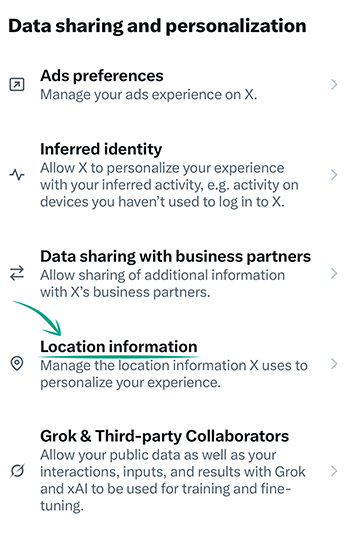
- Go to Precise location;
- Clear the check mark next to Precise location.
The iOS app doesn't let you remove geotags from your previous posts. To do so, follow instructions for the web version.
X(Twitter) can still infer your region from your IP address to personalize content even if you disable precise location sharing. To limit content based on your current location, follow these steps:
- Open the menu by tapping the profile icon in the upper left corner of the screen;
- Open Settings and privacy;
- Select Privacy and safety;
- Tap Content you see;
- Tap Explore settings and turn off Show content in your current location.
Downside: Third-party services can also geotag your posts and do not always warn you explicitly.
What for: So the AI knows less about you.
If you're a Grok user, X(Twitter)may share not only your public data but also information about your chats, entered queries, and received responses with xAI for AI training and improvement. Some of that data may be used to personalize your interactions with Grok. Besides, X(Twitter) may share your information with xAI's partners, which increases the risks of uncontrolled collection and processing of your data by third parties.
To stop xAI Grok from using your X(Twitter) data for training and customization:
- Open the menu by tapping the profile icon in the upper left corner of the screen;
- Open Settings and privacy;
- Select Privacy and safety;
- Under Data sharing and personalization, select Grok & Third-party Collaborators:
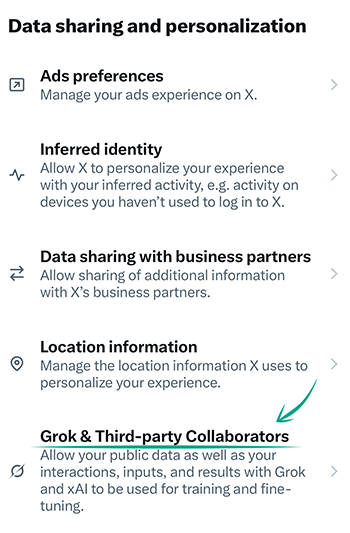
- Turn off Allow your public data as well as your interactions, inputs, and results with Grok and xAI to be used for training and fine-tuning;
- Turn off Allow X to personalize your experience with Grok;
- Turn off Allow Grok to remember your conversation history.
- You can also clean up your Grok chats by tapping Delete conversation history.
Downside: Deleting your chat history means you will start your conversations with Grok from scratch every time, and the AI will not be able to take into account the context of your past chats.
What for: To minimize the risk of a leak.
X(Twitter) can collect information about your behavior, preferences, interest, and location, as well as other data. You cannot block access to the basic account info. This includes the name of your device, your social network activity and approximate location. This information is used to generate targeted ads and recommendations as well as to form the news feed.
However, X(Twitter) can analyze additional data and info. If you regularly use a phone and computer connected to the same network, X(Twitter) may conclude that you own both devices. If you use only one of the devices to sign in to X(Twitter), the social network may take into account, say, your browsing history from the other device.
Additional information includes:
- Places you visited and precise geographic coordinates;
- Information about your other browsers and devices, even if you haven't used them to log in to X(Twitter);
- Information about e-mail addresses and phone numbers that are not linked to your X(Twitter) account but presumably belong to you;
- Online browsing history;
- History of views and your interests.
Some of this information is provided by partners of the service. X(Twitter) itself can also share it with third parties. By default, the social network does not collect extended information, but we recommend checking the settings anyway.
To stop the app from collecting and using extended personalized information:
- Open the menu by tapping the profile icon in the upper left corner of the screen;
- Open Settings and privacy;
- Select Privacy and safety;
- Under Data sharing and personalization, select Ads preferences and turn off Personalized ads;
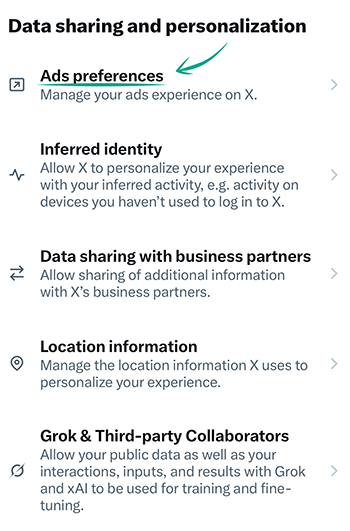
- Select Inferred identity and turn off Personalize based on your inferred identity;
- Select Data sharing with business partners and turn off Allow additional information sharing with business partners.
Please note: Turning off these options does not disable content personalization. X(Twitter) will continue to take into account the name of your device, actions in the social network, and IP address. Access to this data cannot be disabled.
What for: So X(Twitter) has less info about you.
X(Twitter) stores data about your behavior, hobbies, and locations. It then uses such data for targeted ads and recommendations. If you are bothered by targeted ads, you can remove this information.
To remove saved data about your interests and location:
- Open the menu by tapping the profile icon in the upper left corner of the screen;
- Open Settings and privacy;
- Select Privacy and safety;
- Under Data sharing and personalization, tap Ads preferences, then tap See your X data;
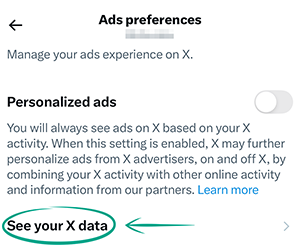
- On the browser page that opens, go to the Interests and adds data section:
- Tap Interests from X and uncheck the boxes next to all items in the list;
- Tap Inferred interests from partners and uncheck the boxes next to all items in the list;
- Tap Tailored audiences and uncheck the boxes next to all items in the list.
- Go back to See your X data and tap Account history;
- Tap Places you've been, enter your password, then tap Delete.
Please note: X(Twitter) can add new information on your interests and preferences based on your social network activity, so we recommend checking this list regularly.
What for: To save data and avoid sharing technical details of your device.
X(Twitter) may automatically send crash reports: data that helps developers detect and fix technical issues. These reports sometimes contain technical information about your device and app performance. Sending this data also requires an internet connection, which may cause excessive data usage if you're roaming or using a cellular network.
To stop the app from sending these reports:
- Open the menu by tapping the profile icon in the upper left corner of the screen;
- Open Settings and privacy;
- Tap Additional resources;
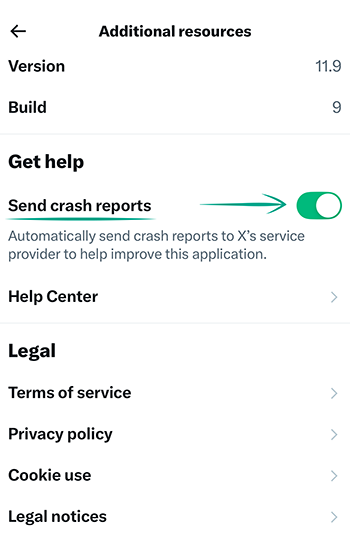
- Under Get help, turn off Send crash reports.
Downside: X(Twitter) will stop receiving information about app malfunctions, so it may take longer to fix bugs and errors.
How to defeat spammers and trolls
What for: To keep your peace of mind.
You can stop posts containing specific words, hashtags, and smiley faces from appearing in your news feed and notifications. This lets you hide unwanted posts.
To configure the filter:
- Open the menu by tapping the profile icon in the upper left corner of the screen;
- Open Settings and privacy;
- Select Privacy and safety;
- In the Your X activity section, select Mute and block;
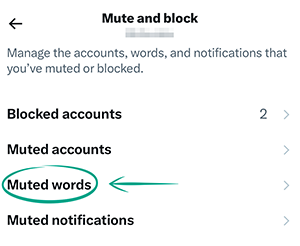
- Select Muted words;
- Tap Add and type a word or phrase posts with which you want to hide;
- In the Mute from section, chose where to apply the filter: to the home timeline and/or the notification feed;
- Choose the type of users to whose posts the filter will be applied: From anyone or From people you don't follow;
- Under Mute timing, tap Duration and select an option;
- Tap Save in the upper right corner of the screen.
Please note: The filter is case-insensitive. By default, it is applied forever to both the home timeline and the notification feed.
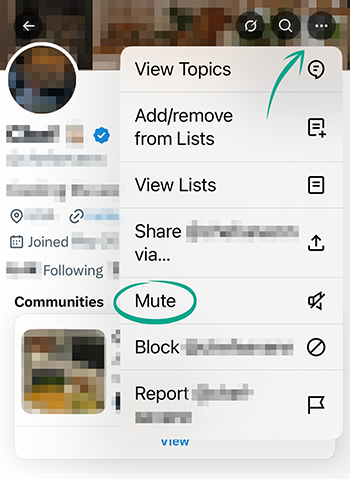
You can also configure the muting of posts, comments, and notifications from specific users:
- Open the user profile whose publications you want to mute;
- Tap the three-dot icon in the upper right corner of the screen;
- Tap Mute;
 .
. - Tap Yes, I’m sure.
You can view the list of users you've muted by selecting Muted accounts in the Mute and block section.
What for: To limit unwanted communication.
By default, only users whom you follow can send you direct messages. However, we recommend checking this setting:
- Open your profile by tapping the menu icon in the upper left corner of the screen;
- Open Settings and privacy;
- Select Privacy and safety;
- In the Your X activity section, select Direct messages;
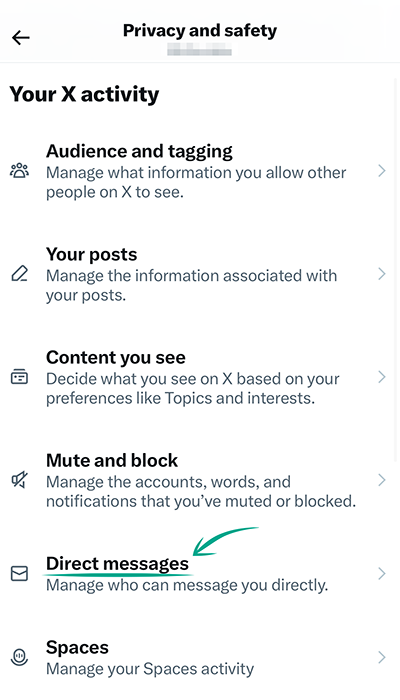
- Under Allow message requests from, select one of the options:
- Nobody;
- Verified users;
- Everyone.
- If you selected Verified users or Everyone, turn on Filter low-quality messages;
- Turn off Enable audio and video calling.
Users with whom you have already started chats will still be able to continue the dialog. Block users you don't want to receive direct messages from.
Please note: Companies and developers may send you direct messages requesting your location or access to media files. They use this information to configure recommendations. Note that this information can be shared with third parties, so treat such requests with care.
What for: To avoid seeing content in search results from users you have blocked.
The iOS app doesn't let you hide blocked accounts in search results. To do so, follow the instructions for the web version of X(Twitter).
How to hide posts from unwanted people
What for: To get rid of unwanted people in the virtual space.
To stop a specific user from viewing your posts and replying to them or sending you direct messages, you can block this user. The blocked user will not be able to view your profile or contact you.
To block a user:
- Go to the profile of the person you wish to block;
- Tap the three-dot icon in the upper right corner of the screen;
- Select Block @user_name;
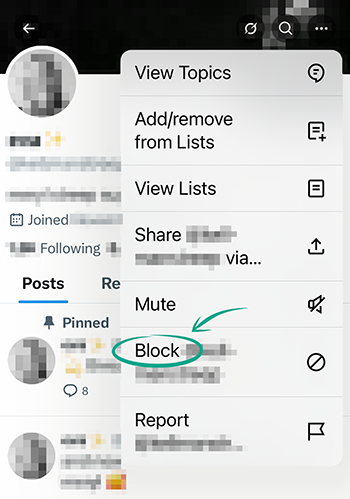
- Tap Block in the window that opens.
A user you've blocked will continue to see your public posts and will be able to report you. However, they will automatically unfollow you and won't be able to send you direct messages — a failure pop-up will appear.
You can unblock a blocked user any time (for example, if you blocked the user by mistake):
- Open the menu by tapping the profile icon in the upper left corner of the screen;
- Open Settings and privacy;
- Select Privacy and safety;
- Go to the Your X activity section;
- Tap Mute and block;
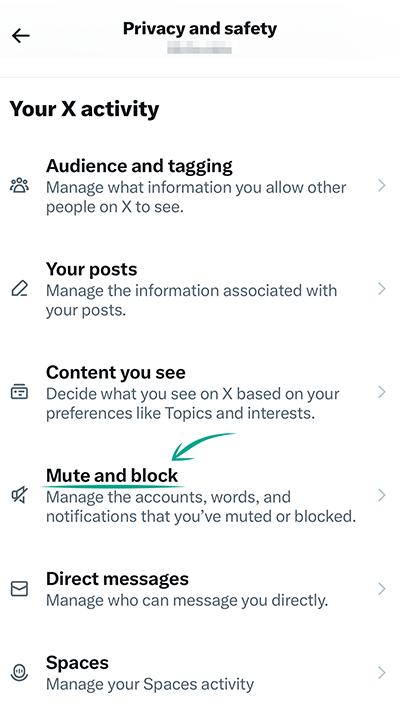
- Go to the Blocked accounts section;
- Tap the Blocked button next to the account name to unblock it.
How to prevent your personal data from being exposed
What for: To prevent your contact details from ending up in the hands of cybercriminals in the event of a leak.
X(Twitter) may use your phone contact list to suggest you to follow people you know. The service also uses contact list information to create targeted ads and form your news feed. This information can be shared with third parties, which increases the risk of leaks.
To disable contact synchronization:
- Open the menu by tapping the profile icon in the upper left corner of the screen;
- Open Settings and privacy;
- Select Privacy and safety;
- Under Your X activity, tap Discoverability and contacts;
- Tap Remove all contacts to delete previously collected data and confirm;
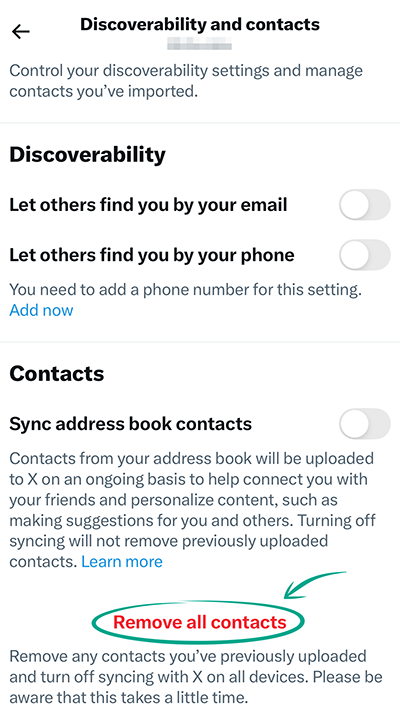
- Disable the Sync address book contacts option.
After that X(Twitter) will stop suggesting you to follow the accounts of your friends in your contact list.
Even after you disable synchronization, the X(Twitter) app will still have permission to access your contacts. To revoke it:
- Open Settings on your device;
- Locate and select X(Twitter) in the list of apps;
- Disable the Contacts option.
Downside: X(Twitter) will no longer be able to recommend accounts to follow from your contact list. However, you may still find some people from your contact list in suggestions.
What for: To keep cybercriminals from learning sensitive information.
By default, your posts are visible to everybody, even people who do not have an X(Twitter) account. Information from posts can help cybercriminals launch phishing attacks. You can limit the visibility of your posts to everybody except approved followers.
To limit access to your posts:
- Open the menu by tapping the profile icon in the upper left corner of the screen;
- Open Settings and privacy;
- Select Privacy and safety;
- In the Your X activity section, select Audience and tagging;
- Check the box next to Protect your posts.
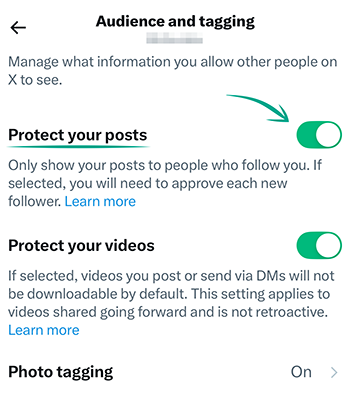
Now X(Twitter) users who want to read your posts will have to submit a request and wait for your approval.
Previously published posts will remain public.
Also, people who were among your followers at the time when you made your profile private will continue to see your posts.
What for: So scammers can't abuse the data in your account.
By default, other X(Twitter) users can find your account using your phone number or e-mail address. Information from your profile can help cybercriminals stage phishing attacks, so we recommend disabling this feature.
To stop users from finding your account using your phone number or e-mail address:
- Open the menu by tapping the profile icon in the upper left corner of the screen;
- Open Settings and privacy;
- Select Privacy and safety;
- Under Your X activity, tap Discoverability and contacts;
- Disable the options:
- Let others find you by your email;
-
Let others find you by your phone.
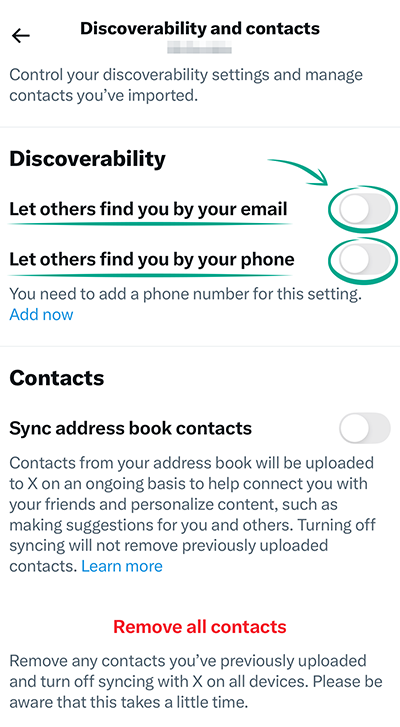
Downside: Other users will have a harder time finding your X(Twitter) account.
What for: To retain control over your content.
Other users can download videos from your posts and save on their devices. To avoid this, disable video downloading:
- Open the menu by tapping the profile icon in the upper left corner of the screen;
- Open Settings and privacy;
- Select Privacy and safety;
- In the Your X activity section, select Audience and tagging;
- Turn on Protect your videos.
Please note: Since July 25, 2023, all new videos on X(Twitter) have been available for download to Premium subscribers by default. Videos uploaded prior to that date are unavailable for download. For account owners under 18, the ability to download videos is automatically turned off and cannot be enabled.
Please note: If you disable video downloading, X(Twitter) users will be able to share a link to your post but not download your videos or post them on other platforms.
What for: To reduce the risk of a leak.
If you linked other sites or apps to X(Twitter), such as apps for finding followers or counting reposts, they can obtain access to your data. In some cases they may also be able to like posts and follow or unfollow accounts on your behalf.
Such sites and apps do not normally inform you explicitly about the specific permissions you grant them.
You can deny third-party apps and sites access to your data in order to rule out any unauthorized activity in your account and lower the risk of data leaks.
To disable access to your account for third-party services and apps:
- Open the menu by tapping the profile icon in the upper left corner of the screen;
- Open Settings and privacy;
- Select Security and account access;
- Tap Apps and sessions;
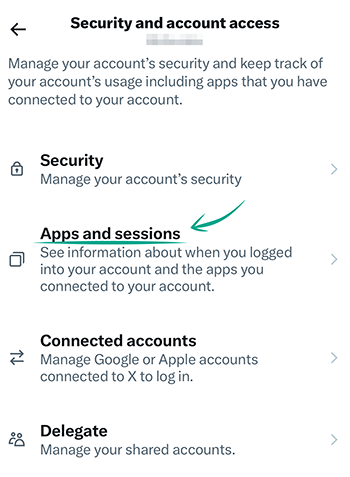
- On the browser page that opens, select Connected apps. Block the ones that you do not use:
- Tap the arrow to the right of the app name;
- Select Revoke app permissions.
What for: So unauthorized users cannot impersonate you.
X(Twitter) allows you to delegate access to your account to others and assign them as a contributor or admin. Contributors can post, send direct messages, and create lists on your behalf, as well as view your direct messages, posts, and lists. Admins, in addition to these privileges, can invite and remove others and view post analytics.
If an untrustworthy user or attacker gains access, they could post questionable content that harms your reputation and attempt to deceive other users in your name.
To disable delegation:
- Open the menu by tapping the profile icon in the upper left corner of the screen;
- Open Settings and privacy;
- Select Security and account access;
- Select Delegate;
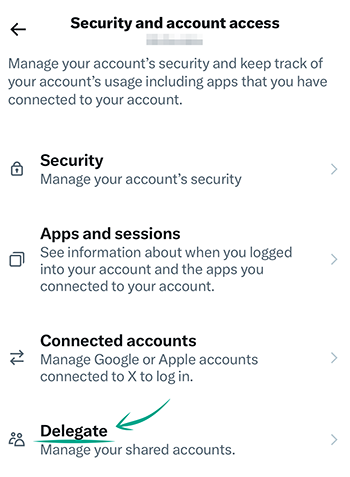
- Under Your delegations, select Members you've delegated;
- Review the list of users you've delegated and identify those you want to revoke access from. Tap the three dots to the right of each of them and tap Remove from group;
- Tap Remove.
If you don't want to completely remove the delegate but only change the permission level, you can switch the role from contributor to admin or from admin to contributor.
To change a delegated role:
- Open the menu by tapping the profile icon in the upper left corner of the screen;
- Open Settings and privacy;
- Under Security and account access, select Delegate;
- Under Your delegations, select Members you've delegated;
- Tap the three dots to the right of the username, whose role you want to change and tap Change role;
- On the Change this member's role screen that appears, assign one of the two roles to the user. Choose the role;
- Tap Change role and then Change role again;
- Tap Done.
To give up the permissions delegated to you by another user:
- Open the menu by tapping the profile icon in the upper left corner of the screen;
- Open Settings and privacy;
- Under Security and account access, select Delegate;
- Under Your delegations, select Accounts delegated to you;
- Review the list of accounts delegated to you, identify the ones for which you want to remove your delegation, and tap Leave account next to each;
- Tap Leave.
To avoid unwanted notifications, you can restrict who can invite you to manage their accounts. To either block all users from sending invitations or allow only those you follow to do so:
- Open the menu by tapping the profile icon in the upper left corner of the screen;
- Open Settings and privacy;
- Select Security and account access;
- Select Delegate:
- To block invitations, turn off Allow others to invite you to their account and confirm your action;
- To limit who can invite you, select Only allow people you follow to invite you below.
What for: So they can't find out your interests.
X(Twitter) offers Spaces — voice channels that hosts, co-hosts, and listeners can join. You can disable the option for your followers to see which Space you've joined.
Please note: Spaces are public, and any user can join any Space as a listener. When you're in a Space, other listeners can always see you. If you're speaking in a Space, your followers will see this.
To stop your followers from seeing what Space you're in:
- Open the menu by tapping the profile icon in the upper left corner of the screen;
- Open Settings and privacy;
- Select Privacy and safety;
- Under Your X activity, select Spaces;
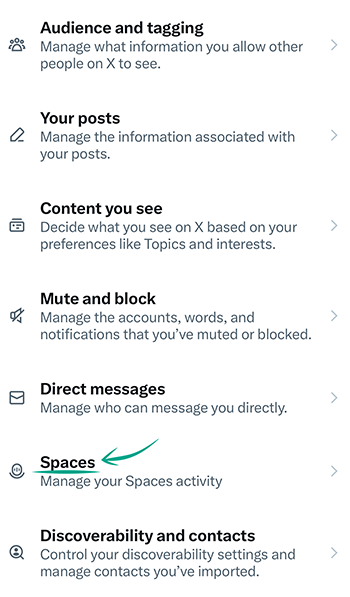
- Turn off Allow followers to see which Spaces you're listening to.
What for: To minimize the risk of a personal data breach.
In some cases, X(Twitter) may ask you to upload a government-issued ID — for example, to obtain a verified badge and access advanced features (when purchasing an X Premium subscription), to investigate complaints and moderate content (for instance, in disputes over impersonation or certain types of ads verification), or to participate in monetization programs (like subscriptions and ad revenue sharing). Additionally, X(Twitter) offers the option to voluntarily verify your identity for increased trust in your account.
We recommend submitting documents only when truly necessary. This is sensitive personal information, and its exposure can result in significant risks.
What for: To see what information X(Twitter) has on you and create a backup copy of important data.
X(Twitter) can generate for you a file with all your profile data. This will let you find out what kind of information the service collects about you as well as save it in case your account gets blocked, removed, or hijacked.
To download an archive with your data:
- Open the menu by tapping the profile icon in the upper left corner of the screen;
- Open Settings and privacy;
- Select Your account;
- Tap Download an archive of your data;
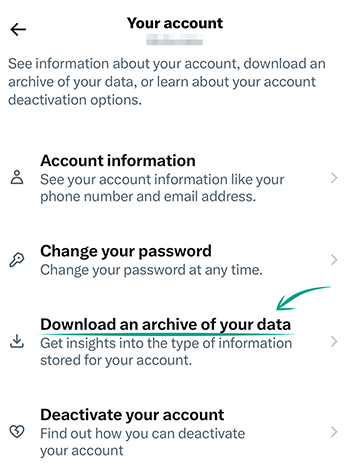
- Enter your X(Twitter) password or use another method to verify your identity;
- Tap Request archive next to X and wait for a notification or e-mail;
- After receiving a confirmation message, tap Download archive next to X.
Here you can also download data of your Periscope account if you use it for direct broadcasts in Twitter.
Preparing the archive may take several days. A download link will be sent to your e-mail address. You'll get a notification in the app that your archive is ready to download.
What for: To control who has access to information about you.
By default, all X(Twitter) users can tag you in photos. If you get tagged by a person whom you follow, the post will appear in your timeline. In this way, your information can become available to strangers. You can block users from tagging your profile when they post images:
- Open the menu by tapping the profile icon in the upper left corner of the screen;
- Open Settings and privacy;
- Select Privacy and safety;
- In the Your X activity section, select Audience and tagging;
- Tap Photo tagging and disable this option.
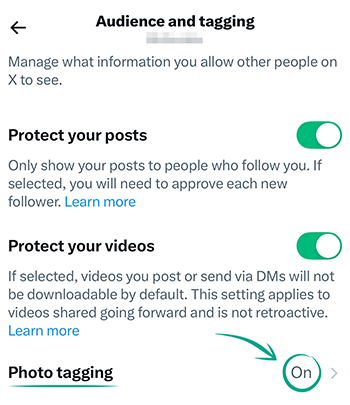
View photos in which you are tagged in the All section in the notification feed (bell icon). If necessary, you can remove the tag:
- Tap the button with three dots to the right of the post author's name;
- Select Remove tag from photo;
- Tap Remove again to confirm your selection.
What for: To prevent your personal information from ending up in the wrong hands.
Cybercriminals can use your account data to stage phishing attacks, and X(Twitter) can use it to configure ads and recommendations. You can limit the scope of publicly available information or refrain from specifying your real info.
To change the profile data:
- Open the menu by tapping the profile icon in the upper left corner of the screen;
- Select Profile;
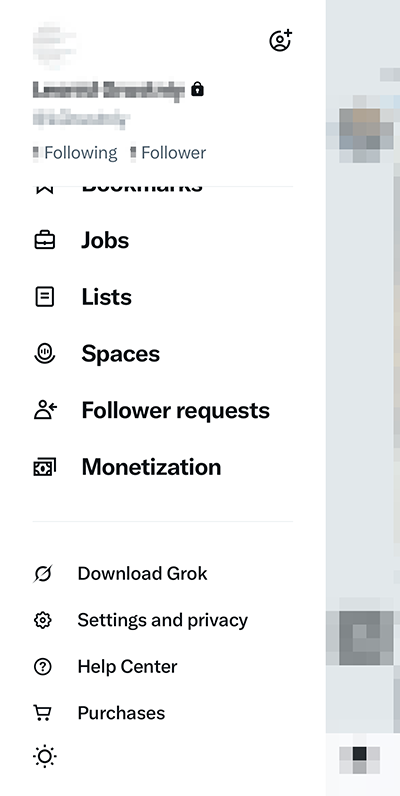
- Tap Edit profile;
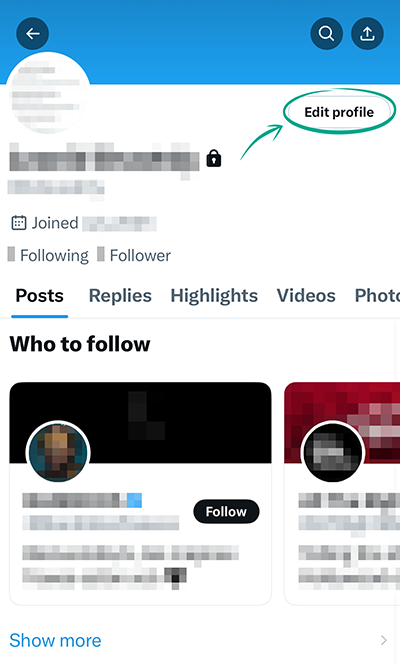
- In the Name field, enter an alias;
- Remove data from the fields:
- Bio;
- Location;
- Website.
- Tap your birth date;
- Tap Remove birth date and confirm your selection;
- Tap your profile photo and upload any image that makes it impossible to determine that the account belongs specifically to you;
- Tap Edit expanded bio and remove all information from About and Work History:
- Tap the red recycle bin next to About and confirm your action;
- Tap the red recycle bin next to each item in Work History and confirm your action.
- Tap Done, then tap the arrow button in the upper left corner of the screen to return to Edit profile;
- Tap Save in the upper right corner of the screen.
Change your X(Twitter) username too if it resembles your real name:
- Open the menu by tapping the profile icon in the upper left corner of the screen;
- Open Settings and privacy;
- Go to the Your account section;
- Select Account information;
- Tap Username;
- Tap New and confirm you want to change your username;
- Type in a new username;
- Tap Done.
How to get rid of unwanted notifications
What for: To avoid distractions.
By default, X(Twitter) sends you notifications about the actions of other users that it deems most interesting. If these notifications distract you, you can stop the app from notifying you about activities of specific user categories, e.g. those who have not confirmed their contact details (spammers often avoid doing this to save time):
- Open the menu by tapping the profile icon in the upper left corner of the screen;
- Open Settings and privacy;
- Go to the Notifications section;
- Tap Filters;
- Turn on Quality filter;
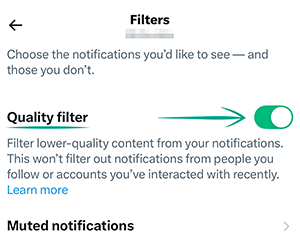
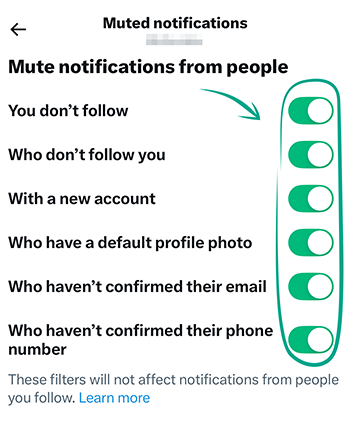
- Tap Muted notifications and turn on:
- You don't follow;
- Who don't follow you;
- With a new account;
- Who have a default profile photo;
- Who haven't confirmed their e-mail;
- Who haven't confirmed their phone number.
Downside: The filter does not apply to accounts that you follow or with which you recently interacted.
What for: To ensure your peace of mind.
X(Twitter) can send you push notifications, text messages, or e-mails. Some of the notifications are marketing materials about recommended products, including from X(Twitter) partners.
To unsubscribe from e-mail notifications like these:
- Open the menu by tapping the profile icon in the upper left corner of the screen;
- Open Settings and privacy;
- Go to the Notifications section;
- Tap Preferences;
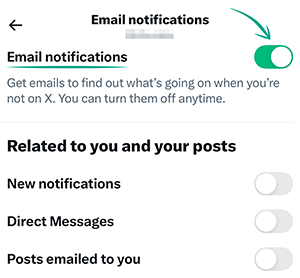
- Select Email notifications;
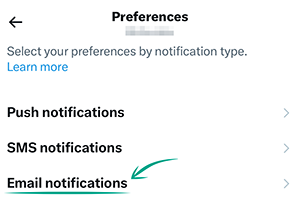
- Disable the options:
- News about updates to X products and features;
- Tips on getting more out of X;
- Things you've missed since you last logged in to X;
- News about X on partner products and other third-party services;
- Participation in X research surveys;
- Suggested for recommended accounts;
- Suggestions based on your recent follows;
- Tips on X business products.
To unsubscribe from advertising push notifications:
- Open the menu by tapping the profile icon in the upper left corner of the screen;
- Open Settings and privacy;
- In the Notifications section, select Preferences;
- Select Push notifications;
- Turn off these options under From X:
- Topics;
- News / Sports;
- Recommendations;
- Moments;
- Broadcasts & Spaces;
- Other live broadcasts;
- Crisis and emergency alerts;
- First look at new features.
We recommend reviewing other notification categories and disabling those that you do not want to receive.
Downside: Some notifications may contain information about service features and useful tips on using the platform.
What for: To reduce distractions.
X(Twitter) can notify you about new likes, replies, direct messages, and even the activities of people you follow. Notifications can be distracting and annoying, especially if you use X a lot. To help you stay focused, we recommend turning off unnecessary push notifications. All of them will remain available within the app, and you can view them at your convenience.
To turn off all push notifications at once:
- Open Settings on your device;
- Locate and select X(Twitter) in the list of apps;
- Disable the Allow notifications option.
To turn off notifications selectively:
- Open the menu by tapping the profile icon in the upper left corner of the screen;
- Open Settings and privacy;
- Open the Notifications section and select Preferences;
- Navigate to Push notifications;
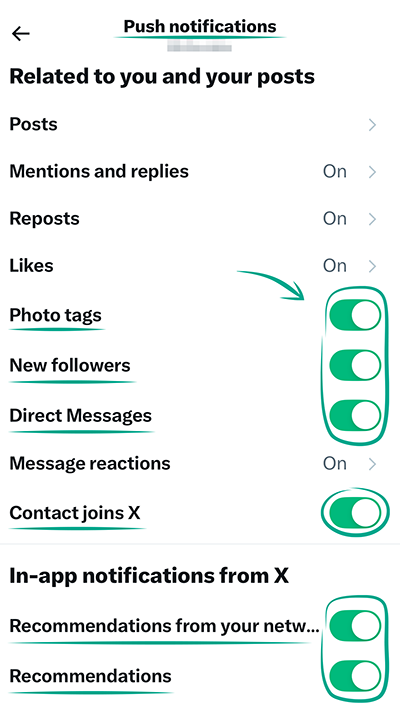
- In this menu, you can turn off notification types one by one. Use the toggle switches next to the options you want to turn off under Related to you and your posts, In-app notifications from X, and X for Professionals:
- Posts. Tap this option, then turn off the toggle switch next to Posts in the window that opens to stop all push notifications for new posts. Tap the arrow in the upper left corner of the screen to continue configuring other push notifications;
- Mentions and replies. Tap this option, then turn off the toggle switch next to Mentions and replies to stop all push notifications for new mentions and replies;
- Reposts. Tap this option, then turn off the toggle switch next to Reposts on the next screen to stop all push notifications for new reposts;
- Likes. Tap this option, then turn off the toggle switch next to Likes to stop all push notifications for new likes;
- Photo tags;
- New followers;
- Direct Messages;
- Message reactions. Tap this option, then turn off the toggle switch next to Message reactions to stop all push notifications for new message reactions;
- Contact joins X;
- Recommendations from your network;
- Recommendations;
- Topics;
- News / Sports;
- Broadcasts & Spaces;
- Other live broadcasts;
- Crisis and emergency alerts;
- First look at new features;
- Ads compaigns.
To unsubscribe from e-mail notifications like these:
- Open the menu by tapping the profile icon in the upper left corner of the screen;
- Open Settings and privacy;
- Open the Notifications section and select Preferences;
- Navigate to Email notifications. In this menu, you can turn off notification types one by one. Turn off the toggle switches next to the notifications you want to unsubscribe from under Related to you and your posts and From your network:
- New notifications;
- Direct Messages;
- Posts emailed to you;
- Top posts and Stories. X(Twitter) gives the user the choice between disabling the notifications altogether by tapping Off and receiving notifications Daily, Weekly, or Periodically;
- Updates about the performance of your posts;
- To disable all notifications at once, turn off the toggle switch next to Email notifications at the top of the section.