
How to keep your account from getting hacked
What for: So you don't get hacked.
If you use a short and simple password on Facebook, cybercriminals can guess it and hijack your account. A long and complex password is more secure. Use a strong password that:
- Is at least 8 and up to 20 characters long;
- Contains lowercase and uppercase letters, numbers, and special characters ($, @, etc.);
- Is not an actual word or easy-to-guess phrase;
- Is not the same as your passwords for any other accounts;
- Does not consist of information that strangers could easily find out (your name, date of birth, pet's name, and so forth — or those of your friends or relatives).
To change your password:
- Tap the three-stripe icon in the upper right corner of the screen;
- Tap the cogwheel in the upper right corner;
- Tap Accounts center;
- Tap Password and security;
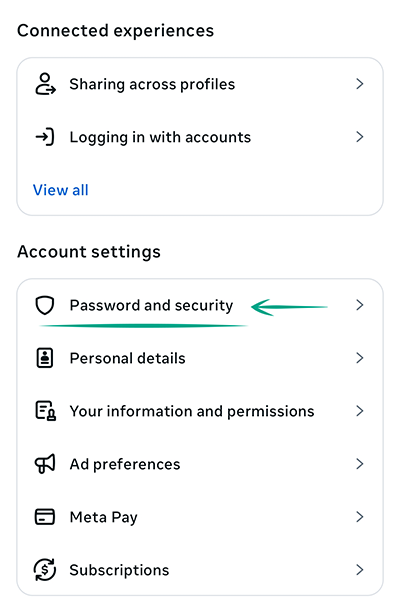
- Select Change password;
- Tap the name of your Facebook account;
- Enter your current password;
- Enter a new strong password twice;
- Check Log out of other devices;
- Tap Change password.
What for: So you definitely don't get hacked.
Facebook can be configured to request a one-time code or physical security key when you log in to your account. That way, even if cybercriminals learn your username and password, they will not be able to use them without the one-time code or security key. The code is sent to your specified phone number or generated in a dedicated application, and a security key is a small hardware device used to authorize your login.
To enable two-factor authentication:
- Tap the three-stripe icon in the upper right corner of the screen;
- Tap the cogwheel in the upper right corner;
- Tap Accounts center;
- Tap Password and security;
- Select Two-factor authentication;
- Tap the name of your Facebook account;
- Enter your current account password;
- Tap Continue;
- Select the authentication method:
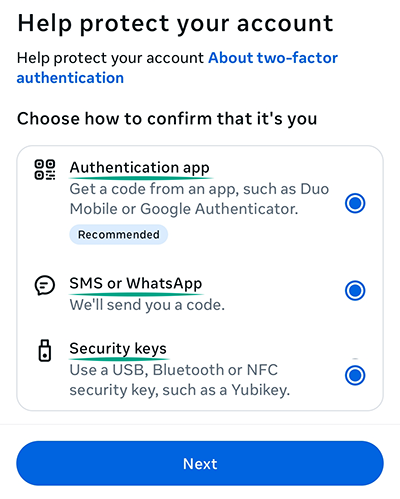
- Authentication app: download an authenticator app like Kaspersky Password Manager (if you have a subscription) or Google Authenticator. Scan the QR code or copy the key and enter the verification code from the app.
- SMS or WhatsApp: if you don't have a phone number linked to your Facebook account, you'll need to enter one and tap Next. Then, enter the code you receive on your phone.
- Security keys: enter your Facebook password, insert the security key into your device, and tap Register Security Key.
Note that selecting a code sent to your phone or WhatsApp as the two-factor authentication method links that phone number to your profile. Facebook will request permission to use the phone number for targeted ads and to display it on your profile. This will let users find you by phone number on Facebook, and the service will recommend people you may know based on your phone contacts.
With two-factor authentication, you can log in to your account even if you lose your phone. Use recovery codes for that. Each of the ten codes can be used only once. To get your codes:
- Tap the three-stripe icon in the upper right corner of the screen;
- Tap the cogwheel in the upper right corner;
- Tap Accounts center;
- Tap Password and security;
- Select Two-factor authentication;
- Tap the name of your Facebook account;
- Tap Additional methods;
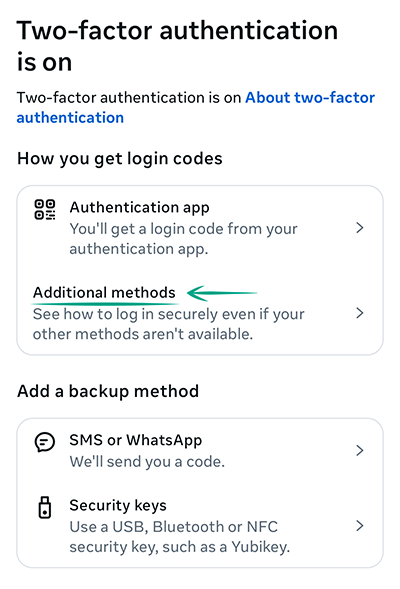
- Select Recovery codes;
- Write them down or take a screenshot, and keep the information in a safe place.
To add your device to the list of trusted devices, tap Trust this device after entering your credentials to log in to your account. Be careful and do not do this if you are logging in to your account from someone else's device. If a device you've marked as trusted falls into someone else's hands, they'll be able to log in to your account, bypassing two-factor authentication.
To avoid this scenario, periodically check your trusted devices list and keep only those you are currently using:
- Tap the three-stripe icon in the upper right corner of the screen;
- Tap the cogwheel in the upper right corner;
- Tap Accounts center;
- Tap Password and security;
- Select Two-factor authentication;
- Tap the name of your Facebook account;
- Tap Trusted devices;
- A list of all devices considered trusted will open. The list shows the login method, operating system, and login location and time. If you see a device you don't recognize, tap to remove it;
- Tap Remove device.
What for: To take timely security measures.
If you've logged in from someone else's device or you suspect that your account might have been hacked, you can review the activity log in your profile to see if a bad actor has done anything on your behalf and roll back all you find inappropriate. You can also review the list of active sessions and terminate the ones you believe are unauthorized, unwanted, or outdated.
To view your activity log:
- Tap the three-stripe icon in the upper right corner of the screen;
- Tap the cogwheel in the upper right corner;
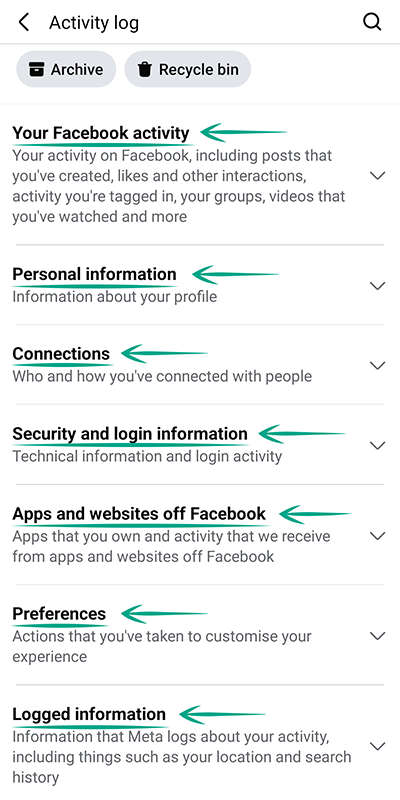
- Select Activity log under Your activity;
- To view your activity and account events information, check out the following sections:
- Your Facebook activity;
- Personal information;
- Connections;
- Security and login information;
- Apps and websites off of Facebook;
- Preferences;
- Logged information.
To end unwanted active sessions:
- Select Security and login information under Activity log;
- Select Where you're logged in. This shows all your active sessions;
- To log out, tap the three dots next to the session details;
- Tap Log out.
Another way to end leftover sessions is through the Accounts Center:
- Tap the three-stripe icon in the upper right corner of the screen;
- Tap the cogwheel in the upper right corner;
- Tap Accounts center;
- Tap Password and security;
- Tap Where you're logged in;
- Tap the name of your Facebook account. This shows all your active sessions;
- To terminate a session, tap Select devices to log out;
- Select the relevant session;
- Tap Log out;
- Confirm your choice.
What for: To change your password promptly if you get hacked.
Facebook can notify you every time your username and password are entered in a new browser or on a new device. If someone logs in to your account, you'll learn about it and you can quickly end the unauthorized session and change your password. To this end, the social network will send you an e-mail or notification to a trusted device. We recommend activating both options so that you can receive alerts even if one of them is unavailable, for example if you lose your phone or your e-mail gets hacked.
To enable suspicious activity alerts:
- Tap the three-stripe icon in the upper right corner of the screen;
- Tap the cogwheel in the upper right corner;
- Tap Accounts center;
- Tap Password and security;
- Tap Login alerts;
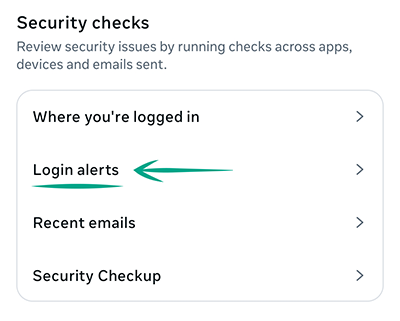
- Select your Facebook account name;
- Check In-app notifications and Email;
- Tap Save Changes.
What for: To reduce the risk of being hacked.
You can use the phone number linked to your account as the primary login or recovery method. However, linking your phone number exposes you to SIM swapping where attackers exploit your carrier to gain access to your data. If you consider this threat relevant, remove your phone number:
- Tap the three-stripe icon in the upper right corner of the screen;
- Tap the cogwheel in the upper right corner;
- Tap Accounts center;
- Tap Personal details;
- Select Contact info;
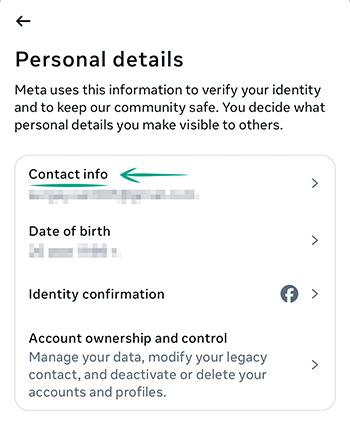
- Tap your phone number;
- Select Delete number;
- Tap Delete to confirm.
Downside: You'll no longer be able to use one-time codes sent to your phone as the primary login method or as one of the two-factor authentication methods.
How to protect your money
What for: To prevent data breaches and keep your money safe.
Facebook users can make in-service purchases, donate money to charity, or buy products, for example, on Facebook Marketplace. To this end, the social network requests and stores your bank card or PayPal account details as a payment method. That's convenient, but in the event of a leak or hack, your financial information could fall into the hands of cybercriminals. To avoid that, delete the information from the social network's database:
- Tap the three-stripe icon in the upper right corner of the screen;
- Select Settings and privacy;
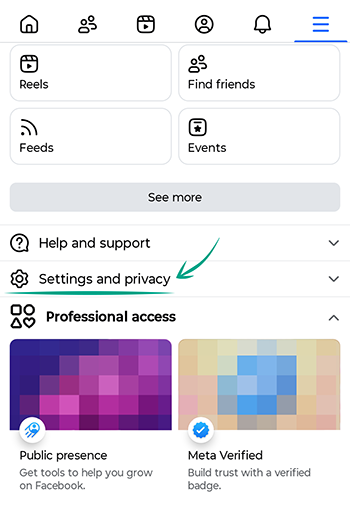
- Tap Orders and payments. At the top of the screen, you'll see a list of bank cards and PayPal accounts associated with your Facebook account;
- Go through them, tapping Remove Card for each.
Downside: If you're using a card to pay for ads, you'll need to close your Facebook ad account before you can remove this card. Besides, you can't purchase anything on Facebook without a saved payment method. You can still buy goods on Facebook store pages if they process payments on their own sites.
How to keep corporations out of your business
What for: To stop Facebook from tracking your activity outside the platform.
The social network's partners share information about your actions on their websites and in their mobile applications with Facebook. They also share your advertising ID and e-mail address or phone number — whichever they have access to. If these match your account, Facebook will use your purchase details to personalize ads targeting you. For instance, if you have looked for a hotel in another town using a lodging search application, Facebook will show you ads for airlines that sell flights to that town. This feature uses your online activity log. To clear the activity log and prevent Facebook from using information about your online activity for personalizing ads:
- Tap the three-stripe icon in the upper right corner of the screen;
- Tap the cogwheel in the upper right corner;
- Tap Accounts center;
- Select Your information and permissions;
- Tap Your activity off Meta technologies;
- Tap Clear previous activity;
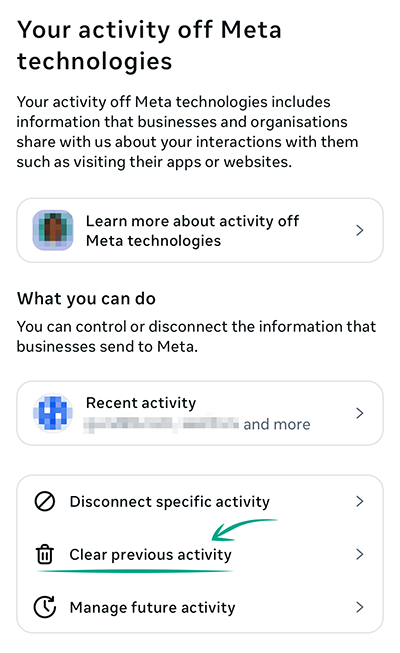
- Tap Clear;
- Confirm your choice;
- Go back to Your activity off Meta technologies;
- Tap Manage future activity;
- Select Disconnect future activity;
- Tap Continue;
- Confirm your choice.
Note that the updated settings will take effect within two days. The amount of ads will remain unchanged, but they'll no longer consider your activity outside of Facebook. Facebook will still receive information about your online activity from partners, but it'll stop using it for ad targeting.
What for: To stop Facebook from tracking your activity in the in-app browser.
Enhanced browsing helps Facebook store and use data on link taps and websites viewed in the in-app browser. The app uses this data for recommendations and to show more relevant ads. If you don't need this and don't want your actions tracked, disable the feature:
- Tap the three-stripe icon in the upper right corner of the screen;
- Tap the cogwheel in the upper right corner;
- Select Browser under Preferences;
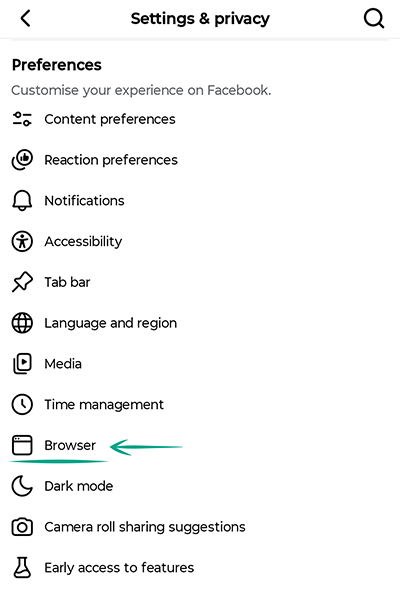
- Turn off Enhanced browsing.
What for: To prevent your contact details from ending up in the hands of cybercriminals in the event of a leak.
The Facebook app requests the contact list of your phone to help you locate the people you know on the social network. It also uses this information for ad targeting, so it may share it with third parties, which increases the risk of a data leak. To disable contact synchronization:
- Tap the three-stripe icon in the upper right corner of the screen;
- Tap the cogwheel in the upper right corner;
- Select Device permissions under Your activity and permissions;
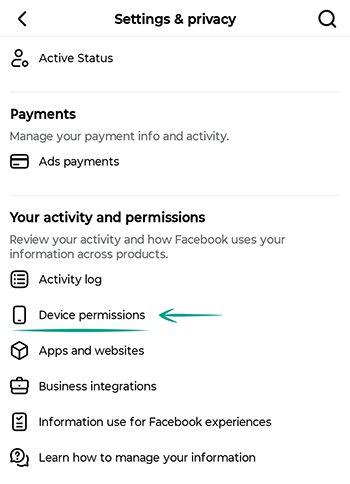
- Tap See info next to Contacts;
- Select Update settings;
- Tap Open device settings. The phone's settings menu opens. Once there:
- Select Permissions;
- Tap Contacts;
- Select Don't allow.
Downside: The social network will not prompt you to befriend your new acquaintances whose numbers you store in the contact list.
Note that if Instagram, Messenger, or WhatsApp, all of which are owned by Meta, have access to the contact list, Facebook can use this information too. To avoid this, disable access to contacts for all Meta apps on all devices that have a contact list. To check what contacts have been uploaded to your account and delete the ones you don't want there, follow the link to Messenger.
What for: So no one knows where you are.
Facebook can use your location data to add geotags to your posts and stories and to generate recommendations and targeted ads. If you don't want the social network or some strangers to know your location, you can disable access to geodata.
To disable geodata transfer:
- Tap the three-stripe icon in the upper right corner of the screen;
- Tap the cogwheel in the upper right corner;
- Select Device permissions under Your activity;
- Tap See info next to Location;
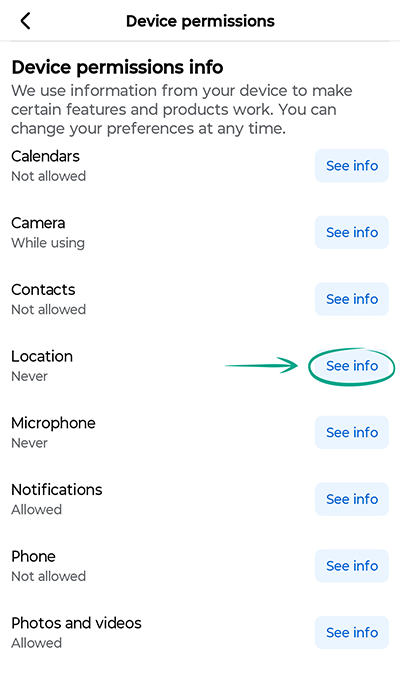
- Select Update settings;
- Tap Open device settings. The phone's settings menu opens. Once there:
- Select Permissions;
- Tap Location;
- Select Don't allow or Ask every time.
Downside: Facebook will not be able to alert your friends when you are nearby or show you nearby events.
Note that if Instagram, Messenger, or WhatsApp, all of which are owned by Meta, have access to your location, Facebook can use this information too. To avoid this, disable location access for all Meta apps on all your mobile devices.
What for: To stop Facebook algorithms from analyzing your photos and videos and their metadata.
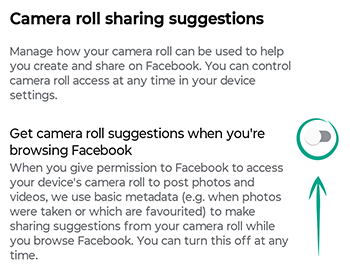
Facebook analyzes basic metadata from photos and videos on your device — like geotags, creation dates, or adding to favorites — to suggest recommendations and prompts for creating posts. If you don't want Facebook to access your multimedia metadata or generate recommendations based on it, you can disable this option:
- Tap the three-stripe icon in the upper right corner of the screen;
- Tap the cogwheel in the upper right corner;
- Select Camera roll sharing suggestions under Preferences;
- Turn off Get camera roll suggestions when you're browsing Facebook.
What for: To keep the app from storing personal data.
When you follow links in the app and visit third-party sites, the built-in browser may save your information when filling out forms. This may include your full name, phone number, physical and e-mail addresses, and payment details. If you don't want Facebook to store this data — or for someone with access to your phone to use it — disable autofill and delete the saved information.
To stop Facebook from storing your data:
- Tap the three-stripe icon in the upper right corner of the screen;
- Tap the cogwheel in the upper right corner;
- Select Browser under Preferences;
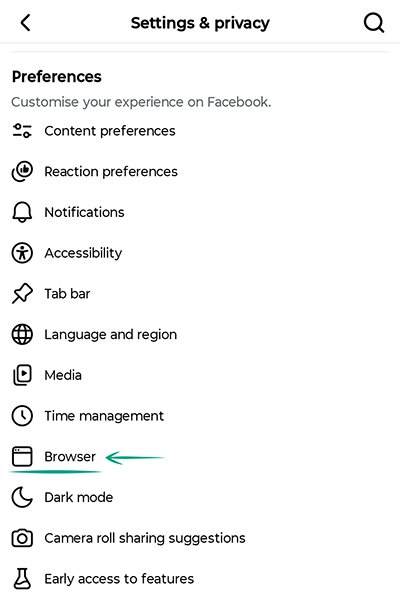
- Under Autofill, turn off:
- Autofill contact forms;
- Autofill payment forms.
If you previously added your information in the application settings and you don't want it to end up in the wrong hands, make sure that Facebook doesn't store it:
- Tap the three-stripe icon in the upper right corner of the screen;
- Tap the cogwheel in the upper right corner;
- Select Browser under Preferences;
- Under Autofill, tap Contact info and clean up any information about you.
Downside: You'll have to manually enter your information into forms every time.
What for: To restrict what Facebook and its partners know about you.
Facebook and its advertising partners may use information about your activity on the platform, personal details in your profile, and other data to select ads specifically tailored to your interests. If targeted ads bother you, disable the use of your details and information about your actions on Facebook.
- Tap the three-stripe icon in the upper right corner of the screen;
- Tap the cogwheel in the upper right corner;
- Tap Accounts center;
- Tap Ad preferences. You'll land on the Customize ads tab;
- Go to the Manage info tab;
- Under Information used to show you ads, tap Categories used to reach you;
- Disable the options Employer, Job Title, Education and Relationship Status:
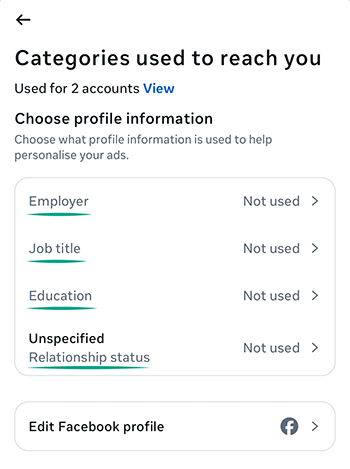
- Tap the option;
- Select No;
- Tap the cross in the upper left corner to leave the page.
- Under Categories associated with you, tap View all;
- Tap Remove next to each category.
- Go back to the Manage info tab;
- Tap Activity information from ad partners;
- Tap Review setting;
- Select No, don't make my ads more relevant by using this information;
- Tap Confirm;
- Select Audience-based advertising to see the list of advertisers who have included you in their target audience based on your personal information;
- For each advertiser individually:
- Tap the advertiser;
- Tap They uploaded or used a list to reach you;
- Tap Don't allow.
- Go back to the Manage info tab;
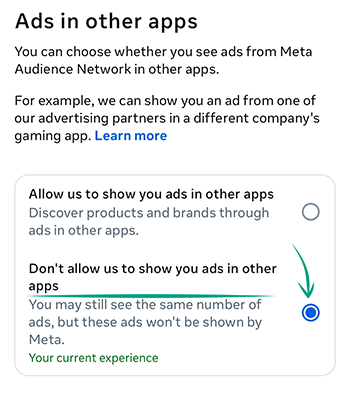
- Under Ads shown outside of Meta, select Ads in other apps;
- Tap Don't allow us to show you ads in other apps;
- Go back to the Manage info tab;
- Under Ads shown outside of Meta, select Ads about Meta;
- Select Don't use my activity to show me ads about Meta;
- Tap Confirm.
Note that you'll still see ads, but they won't be based on your personal data.
What for: To stop Facebook from accessing your personal data.
Facebook can request permission to access the camera, microphone, or photos for certain features, such as content posting or video calling. If you don't want the app to have constant access to your data — including in the background — you can disable these options on your device:
- Tap the three-stripe icon in the upper right corner of the screen;
- Tap the cogwheel in the upper right corner;
- Select Device permissions under Your activity;
- Tap See info next to Camera:
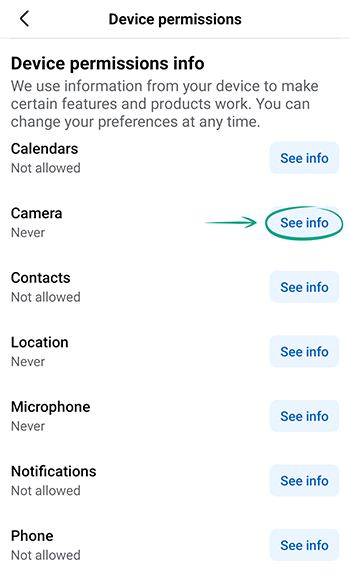
- Select Update settings;
- Tap Open device settings;
- Tap Permissions;
- Select Camera;
- Tap Ask every time or Don't allow.
- Tap See info next to Microphone:
- Select Update settings;
- Tap Open device settings;
- Tap Permissions;
- Select Microphone;
- Tap Ask every time or Don't allow.
- Tap See info next to Photos and videos:
- Select Update settings;
- Tap Open device settings;
- Tap Permissions;
- Select Photos and videos;
- Select Allow limited access or Don't allow.
Downside: Disabling these settings might limit or break some Facebook features. In particular, to post a photo, record a video from the app, send a voice message, or attach an image, you'll need to re-enable these permissions.
How to defeat spammers and trolls
What for: To keep your peace of mind.
You can also block the app from showing comments containing certain keywords or hashtags in your profile. This hides potential offensive comments or other unwanted content.
To configure the filter:
- Tap the three-stripe icon in the upper right corner of the screen;
- Tap the cogwheel in the upper right corner;
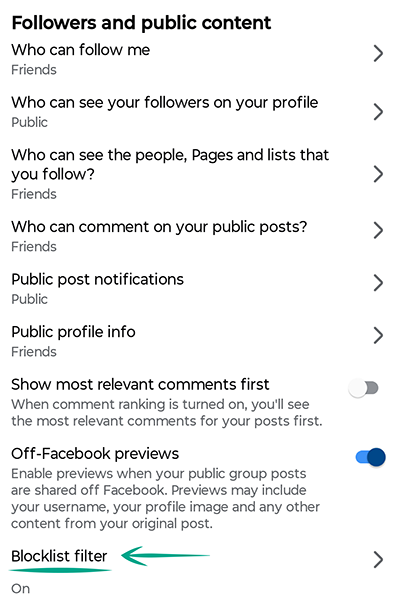
- Select Followers and public content under Audience and visibility;
- Tap Blocklist filter;
- Enter comma-separated words, phrases, or emojis that you want to exclude from comments on your profile;
- Tap Save.
Note that hidden comments will remain visible to those who wrote them and their friends.
What for: To prevent others from using your content for their own ends.
By default, any Facebook user can publish a story mentioning any of your posts. The story will be visible to the chosen audience for 24 hours. It'll include your name along with a link to your post. Spammers, trolls, or anyone else might exploit this — or you might be annoyed to see your content reused without your permission. To prevent this, disable the option to create stories based on your posts:
- Tap the three-stripe icon in the upper right corner of the screen;
- Tap the cogwheel in the upper right corner;
- Select Profile and tagging under Audience and visibility;
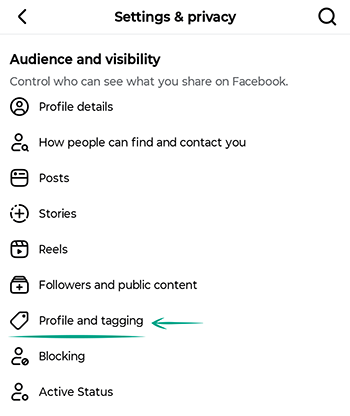
- Turn off Allow others to share your posts to their stories?
What for: To avoid becoming a victim of haters and trolls.
Facebook users can comment on your profile pictures, cover photo, and bio updates, and also like them or add emoji. If you see annoying comments or tags appearing under your personal details or photos, restrict access to your personal info:
- Tap the three-stripe icon in the upper right corner of the screen;
- Tap the cogwheel in the upper right corner;
- Select Followers and public content under Audience and visibility;
- Select Public profile info;
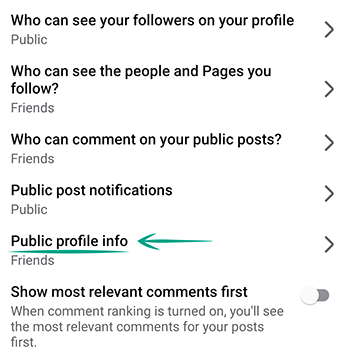
- Select an option:
- Friends of friends: only your friends and their friends can comment on your public profile info;
- Friends: only your friends can comment on your public profile info.
- Tap Save.
What for: So you can avoid running into unwanted people.
If a Facebook user is leaving offensive comments, sending you spam, or is otherwise annoying you, you can block that person. They won't be notified, but they'll be unable to view your profile, leave comments under your posts, or message you. To block a user:
- Open the profile of the user you want to block;
- Tap the three dots;
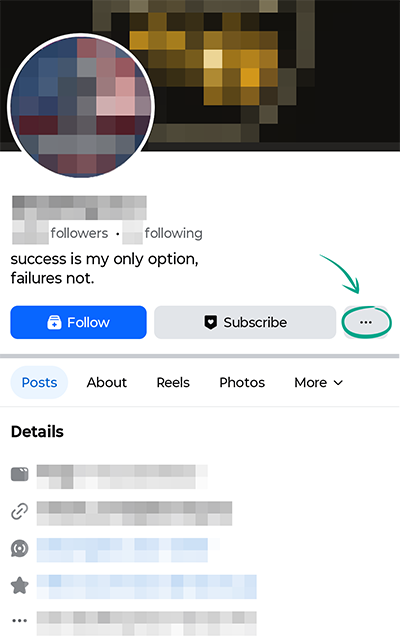
- Tap Block;
- Tap Block again to confirm your selection.
You can manage the list of blocked users:
- Tap the three-stripe icon in the upper right corner of the screen;
- Tap the cogwheel in the upper right corner;
- Select Blocking under Audience and visibility:
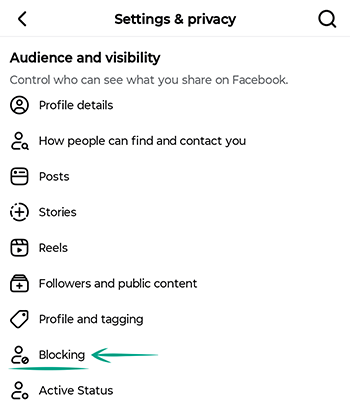
- To block a user, tap Add to blocked list:
- Type a name of user you want to block;
- Tap Block;
- Tap Block again to confirm your selection.
- To unblock a user, tap Unblock next to their name:
- Tap Unblock again to confirm your selection.
- To block a user, tap Add to blocked list:
What for: To remove irrelevant comments.
By default, all Facebook users can leave comments under your posts, an ability that spammers and trolls often abuse.
To allow only your friends and their friends to comment on your posts:
- Tap the three-stripe icon in the upper right corner of the screen;
- Tap the cogwheel in the upper right corner;
- Select Followers and public content under Audience and visibility;
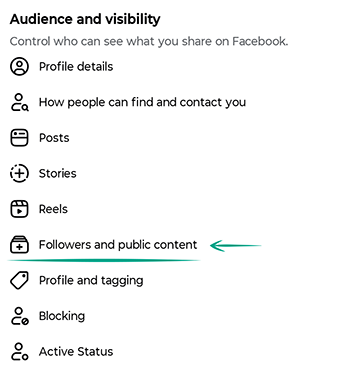
- Select Who can comment on your public posts?
- Select Friends of friends or Friends;
- Tap Save.
What for: To prevent your name from appearing next to offensive content.
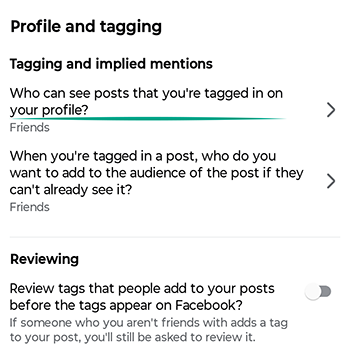
Other Facebook users can tag you in their posts. By default, these posts can appear in your profile, your friends will be alerted about them, and they'll see those posts in their timeline and search results. But what if somebody tags you in an offensive or fraudulent post — or if your friends tag other people in your posts? The point is, tagging isn't always welcome. You can limit the visibility of the posts you're tagged in, and require your permission before others can tag you in their posts or tag other people in yours:
- Tap the three-stripe icon in the upper right corner of the screen;
- Tap the cogwheel in the upper right corner;
- Select Profile and tagging under Audience and visibility;
- Tap Who can see posts you're tagged in on your profile? under Tagging and implied mentions;
- Select an option:
- Everyone: posts you're tagged in will be visible even to users who aren't logged in;
- Friends of friends: posts you're tagged in will be visible to your friends and their friends;
- Friends: posts you're tagged in will be visible only to your friends;
- Friends except…: posts you're tagged in will be visible to all your friends except for those you specifically exclude;
- Specific friends: posts you're tagged in will be visible only to friends you select from the list;
- Only me: posts you're tagged in will be visible only to you.
- Tap Save;
- Go back to Tagging and implied mentions;
- Tap When you're tagged in a post, who do you want to add to the audience of the post if they can't already see it?
- Select an option to choose who can see these posts in their timeline and search results:
- Friends: posts you're tagged in will be visible only to your friends;
- Only me: posts you're tagged in will be visible only to you.
- Tap Save;
- Go back to Profile and tagging;
- Turn on Review tags people add to your posts before the tags appear on Facebook?
- Turn on Review posts you're tagged in before the post appears on your profile?
To review posts with tags and remove an existing link to you in someone else's post:
- Tap the three-stripe icon in the upper right corner of the screen;
- Tap the cogwheel in the upper right corner;
- Select Activity log under Your activity;
- Select Your Facebook activity;
- Tap Manage tags under Activity you're tagged in. You'll see a list of all posts you're tagged in;
- Tap the three dots to the right of the tag you want to delete;
- Tap Remove tag;
- Tap Remove.
What for: To fend off bothersome people.
By default, Facebook allows all users to send you friend requests. Spammers, scammers, and social media friend collectors sometimes take advantage of this. To keep your profile safe from strangers or suspicious accounts, you should limit who can send you friend requests:
- Tap the three-stripe icon in the upper right corner of the screen;
- Tap the cogwheel in the upper right corner;
- Select How people can find and contact you under Audience and visibility;
- Tap Who can send you friend requests?
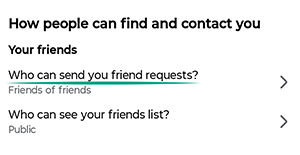
- Select Friends of friends;
- Tap Save.
Downside: Your acquaintances will have a hard time locating your Facebook profile unless they are friends of your friends.
What for: To get rid of spam.
By default, people in your friends list can post on your wall. Sometimes, such "friendly" publications are anything but good, and if any of your friends' accounts get hacked you might see lots of unwanted posts on your profile.
To limit the ability to post to your profile:
- Tap the three-stripe icon in the upper right corner of the screen;
- Tap the cogwheel in the upper right corner;
- Select Profile and tagging under Audience and visibility;
- Tap Who can post on your profile?
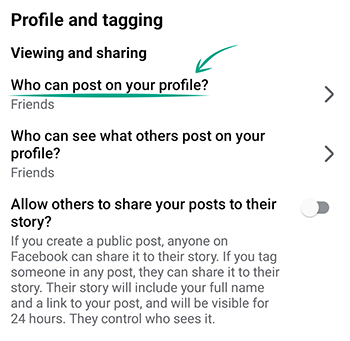
- Select Only me;
- Tap Save.
If you want to keep the option for others to post on your profile, you can still control who sees those posts by limiting their visibility.
- Tap Who can see what others post on your profile?
- Select Only me;
- Tap Save.
How to hide posts from unwanted people
What for: So your posts will be seen only by those for whom they are intended.
You can choose who will see your Facebook posts. By default, even users who are not logged in to Facebook can see them. This can be awkward if you're not comfortable sharing the details of your private life with strangers or people you don't like. Remember that information from your posts can be used against you. For example, information about your personal life can help telephone fraudsters to make up a convincing story in order to steal money from your bank accounts.
To adjust the visibility of your future posts:
- Tap the three-stripe icon in the upper right corner of the screen;
- Tap the cogwheel in the upper right corner;
- Select Posts under Audience and visibility;
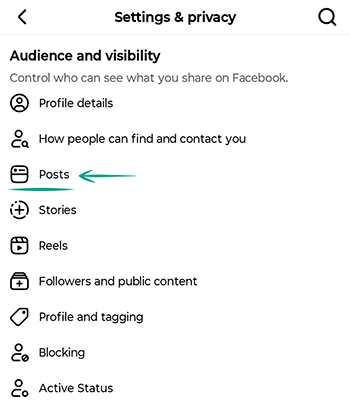
- Select the Who can see your future posts? option;
- Select those who will see your posts by default:
- Friends: only friends will see your posts;
- Friends except…: posts will be visible to all your friends except for those you specifically exclude;
- Specific friends: posts will be visible only to friends you select from the list;
- Only me — posts will not be visible to anyone except you.
- Tap Save.
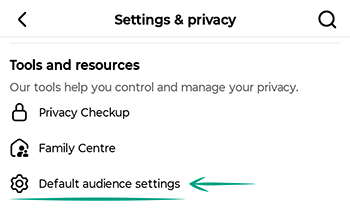
Another way to manage the visibility of your future posts, including stories and reels:
- Tap the three-stripe icon in the upper right corner of the screen;
- Tap the cogwheel in the upper right corner;
- Tap Default audience settings under Tools and resources;
- Select those who will see your posts by default:
- Friends: only friends will see your posts;
- Custom: you can select certain people, friends lists, or exclude certain users.
- Tap Next;
- Tap Done;
- Tap Done.
To limit the visibility of an individual post as you create it, without changing your default settings:
- Tap Public in the lower left corner — the exact option name may differ depending on your selection in the previous guide;
- Choose who you want your post to be visible to:
- Public: your post will be visible to everyone on and off Facebook;
- Friends: your post will be visible only to your friends;
- Friends except...: your post will be visible to all your friends except for those you specifically exclude;
- Specific friends: your post will be visible only to the friends you select from the list;
- Only me: your post will be visible only to you.
- Tap Done;
- Tap Post.
To configure the visibility of a previously published post:
- Tap the three dots next to the post you want to hide;
- Select Edit Privacy;
- Choose who you want your post to be visible to:
- Public: your post will be visible to everyone on and off Facebook;
- Friends: your post will be visible only to your friends;
- Friends except...: your post will be visible to all your friends except for those you specifically exclude;
- Specific friends: your post will be visible only to the friends you select from the list;
- Only me: your post will be visible only to you.
- Tap Save.
To limit the visibility of all your previous posts and make them friends-only:
- Tap the three-stripe icon in the upper right corner of the screen;
- Tap the cogwheel in the upper right corner;
- Tap Posts under Audience and visibility;
- Tap View next to Limit who can see past posts;
- Tap Limit past posts;
- Confirm your choice.
Downside: Even when you limit the visibility of old posts, they remain visible to anyone tagged in them and their friends.
What for: So your stories are visible only to those for whom they are intended.
Other Facebook users can see your stories and share them with their friends. This could expose your personal information to strangers, and bad actors could use the details from your stories against you.
To configure the default visibility of your stories:
- Tap the three-stripe icon in the upper right corner of the screen;
- Tap the cogwheel in the upper right corner;
- Tap Stories under Audience and visibility;
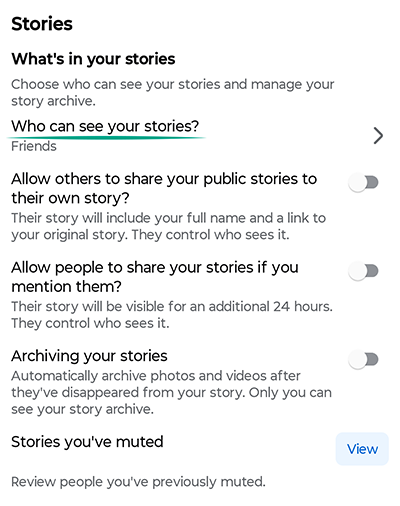
- Turn off Allow others to share your public stories to their own story?
- Turn off Allow people to share your stories if you mention them?
- Tap Who can see your stories?
- Specify who should be able to see your stories:
- Friends: your stories will be visible only to your friends;
- Custom: your stories will be visible only to the people you choose;
- Friends except...: your stories won't be visible to the people you select from your friends list.
- Tap Save.
To limit the visibility of a story when posting it:
- Tap Public in the lower left corner — the exact option name may differ depending on your selection in the previous guide;
- Specify who should be able to see your story:
- Friends: your story will be visible only to your friends;
- Custom: your story will be visible only to the people you choose;
- Hide story from: your story won't be visible to the people you select from your friends list.
- Tap Save;
- Tap Save again;
- Tap Share.
To limit the visibility of a story already posted:
- Tap the story you want to hide;
- Tap the three dots in the upper right corner of the screen;
- Select Edit story privacy;
- Specify who should be able to see your story:
- Friends: your story will be visible only to your Facebook friends;
- Custom: your story will be visible only to the people you choose;
- Hide story from: your story won't be visible to the people you select from your friends list.
- Tap Save.
What for: So you don't show up in search engines.
If you post in public Facebook groups, a preview of those posts will be visible not only to all users on the platform but to everyone on the internet, including through search engines. Previews outside of Facebook may display your name, profile picture, and part of the post content. This can be pretty uncomfortable if you don't want to share your thoughts and personal details with strangers or people you'd rather avoid. Remember that information from your posts can be used against you.
To disable off-Facebook previews for your posts in public groups:
- Tap the three-stripe icon in the upper right corner of the screen;
- Tap the cogwheel in the upper right corner;
- Select Followers and public content under Audience and visibility;
- Turn off Off-Facebook previews.
What for: To prevent others from using your content for their own ends.
By default, Facebook settings allow other users to share your reels and use your original audio to create their own posts. If you don't want others using your original content, you can disable these options. Additionally, you can control who is able to see your reels:
- Tap the three-stripe icon in the upper right corner of the screen;
- Tap the cogwheel in the upper right corner;
- Select Reels under Audience and visibility;
- Select Allow others to use your original audio and remix your future public reels?
- Select Don't allow;
- Tap Save.
- Turn off Allow others to share your reels to their stories?
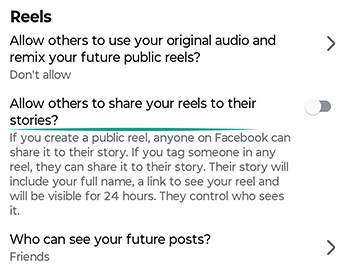
- Tap Who can see your future posts?
- Choose who should be able to see your future reels:
- Public: your posts will be visible to everyone on and off Facebook;
- Friends: your posts will be visible only to your friends;
- Friends except...: your posts will be visible to all your friends except for those you specifically exclude;
- Specific friends: your posts will be visible only to the friends you select from the list;
- Only me: your posts will be visible only to you.
- Tap Save.
What for: To avoid sharing the details of your private life with buyers and sellers.
If you use Marketplace to buy and sell, your followers there can see all your posts by default when they view your Facebook profile. If you'd rather prevent them from knowing too much about you or seeing content that has nothing to do with Marketplace, you can limit what they're able to see:
- Tap the three-stripe icon in the upper right corner of the screen;
- Select Marketplace in the menu;
- Tap a user icon in the upper right corner of the screen;
- Tap Settings;
- Turn off Let people follow you.
How to prevent your personal data from being exposed
What for: To protect yourself from spammers and other shady people.
Bad actors can use information from your profile to establish contact, gain your trust, or manipulate the things that matter most to you. For instance, detailed information about your job or interests helps them contrive persuasive stories, and they can bombard your phone with spam calls or text messages if they know your number.
By default, your phone number is visible to all of your friends. Friends of your friends can see your date of birth. Meanwhile, information about your city, place of study, and work is public. To hide these and other details:
- Tap the three-stripe icon in the upper right corner of the screen;
- Tap the cogwheel in the upper right corner;
- Select Profile details under Audience and visibility;
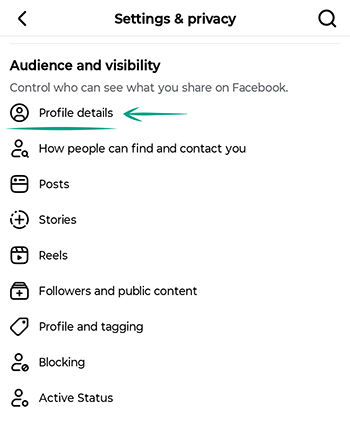
- Tap the pencil next to each item you want to hide;
- Tap Public in the upper left corner;
- Select Only me;
- Tap Done;
- Tap Save.
Downside: Your friends may have trouble locating your Facebook profile or contacting you by phone.
What for: To prevent strangers from finding out about your interests.
By default, people, pages, and lists that you follow are visible to all users. This can be an issue if you'd prefer not to share your interests with strangers. Additionally, scammers can use this information to craft a more believable cover story. You can make these visible to all or some friends, or hide them from everyone but yourself:
- Tap the three-stripe icon in the upper right corner of the screen;
- Tap the cogwheel in the upper right corner;
- Select Followers and public content under Audience and visibility;
- Tap Who can see the people, Pages and lists that you follow?
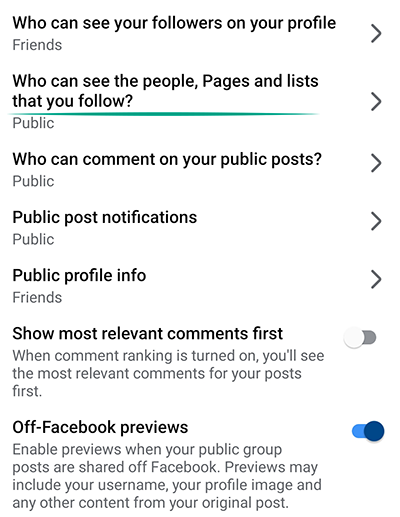
- Select an option:
- Friends: what you follow will be visible to all your friends;
- Friends except...: what you follow will be visible to all your friends except those you select from the list;
- Specific friends: what you follow will be visible only to friends you select from the list;
- Only me: what you follow will be visible only to you.
- Tap Save.
What for: To stop showing everybody when you are online.
Facebook shows your friends when you are, or last were, online. When you're online, people who want something from you can track your status and flood you with messages. Additionally, if you accept friend requests from people you don't know in real life, some of them could turn out to be bad actors. By following your status over a period of several days, they'll see when you are likely to be offline and unable to respond promptly to a cyberattack.
To stop Facebook from showing your status:
- Tap the three-stripe icon in the upper right corner of the screen;
- Tap the cogwheel in the upper right corner;
- Tap Active Status under Audience and visibility;
- Turn off Show when you're active;
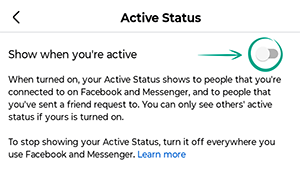
- Tap Turn off.
Downside: By turning off your active status, you also won't be able to see when your friends or people you've messaged are online.
What for: To reduce the risk of data leaks.
Many apps and websites allow users to sign in with their Facebook account. It's handy if you want to avoid the hassle of managing unique logins and passwords for every site you use. However, it also gives the owners of third-party services access to your personal information, including your name, profile picture, and the e-mail address linked to your account. Service developers that have passed a review can request permission to create posts on your behalf or send you advertising messages. It's a best practice to periodically clean up your list of third-party apps and services. This helps prevent unauthorized activity in your account and reduces the risk of a data breach.
To clean up the list of third-party apps and services:
- Tap the three-stripe icon in the upper right corner of the screen;
- Tap the cogwheel in the upper right corner;
- Select Apps and websites under Your activity and permissions and review the list of apps with access to your Facebook account;
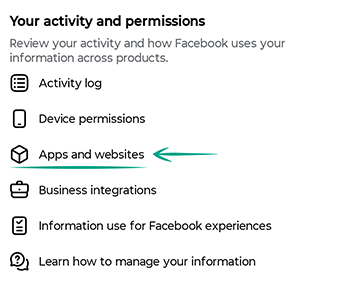
- Tap an app in the list;
- Tap Remove to revoke access;
- Tap Remove again to confirm your selection;
- Repeat this for each app you don't trust.
- Go back to Apps and websites under Your activity and permissions;
- Select Apps, websites and games under Preferences;
- Tap Turn off if you'd rather disable sign-in with Facebook altogether;
- Tap Turn off again to confirm.
Note: Removing access from a third-party service does not automatically end your current session in that service. To completely disconnect, you'll need to manually sign out of the service.
What for: To share less personal information with buyers and sellers.
Facebook uses information from your profile to tailor your experience when you browse listings, make transactions, or message people on Marketplace. This data is used to build your Marketplace profile, which is visible to other users on the platform. To share less information with buyers and sellers, you can disable the use of your Facebook profile data:
- Tap the three-stripe icon in the upper right corner of the screen;
- Tap the cogwheel in the upper right corner;
- Select Information use for Facebook experiences under Your activity and permissions;
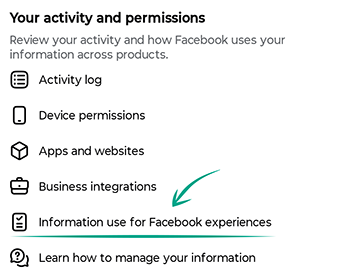
- Next to Marketplace, tap Update;
- Tap Get started;
- Select Not personalized;
- Tap Next;
- Tap Confirm;
- Tap Done.
Downside: Once you disable personalization, some of your Marketplace data — including current listings, messages, and settings — will be deleted. Other users won't be able to see your Marketplace profile, and you won't be able to view theirs either. In-app messaging will be disabled, and the listings you see will no longer be personalized based on your profile data.
What for: To keep your social circle from being on public display.
By default, all Facebook users can see your friends and followers list. Hide that information in the settings unless you want strangers or someone you know to see who you're talking to.
To hide your friends list:
- Tap the three-stripe icon in the upper right corner of the screen;
- Tap the cogwheel in the upper right corner;
- Select How people can find and contact you under Audience and visibility;
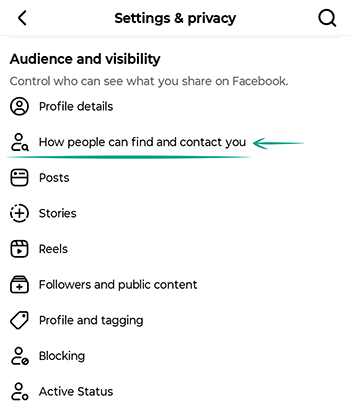
- Tap Who can see your friends list?
- Select an option:
- Friends: your friends list will be visible only to your friends;
- Friends except: your friends list will be visible to all your friends, except for those you specifically exclude;
- Specific friends: your friends list will be visible only to friends you select from the list;
- Only me: your friends list will be visible only to you.
- Tap Save.
To hide your followers:
- Tap the three-stripe icon in the upper right corner of the screen;
- Tap the cogwheel in the upper right corner;
- Select Followers and public content under Audience and visibility;
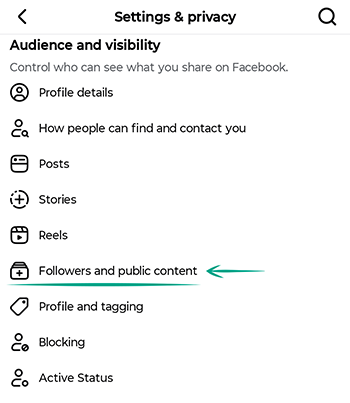
- Tap Who can see your followers on your profile;
- Select an option:
- Friends: what you follow will be visible to all your friends;
- Only me: what you follow will be visible only to you.
- Tap Save.
Remember that users will still be able to see your mutual friends.
What for: To prevent unwanted users from finding your account.
People can use the phone number and e-mail address you specify in your Facebook profile to find your account even when you use privacy settings to hide it. This makes it easy for people you’d rather avoid to find details about you and your private life. Additionally, this is a common tactic for fraudsters looking to collect data on potential victims.
To stop people from using your phone number or e-mail address to find your account:
- Tap the three-stripe icon in the upper right corner of the screen;
- Tap the cogwheel in the upper right corner;
- Select How people can find and contact you under Audience and visibility;
- Tap People with your email address;
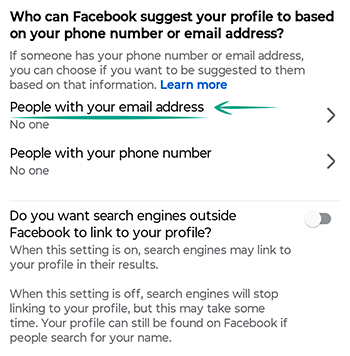
- Select No one;
- Tap Save;
- Go back to How people can find and contact you;
- Tap People with your phone number;
- Select No one;
- Tap Save.
Downside: Your friends will have a harder time locating your Facebook profile.
What for: To protect information about you from prying eyes.
Facebook allows search engines such as Google or Yahoo to show links to your profile when users search for your name or other relevant information. If you do not want to be found online so easily, limit the visibility of your profile:
- Tap the three-stripe icon in the upper right corner of the screen;
- Tap the cogwheel in the upper right corner;
- Select How people can find and contact you under Audience and visibility;
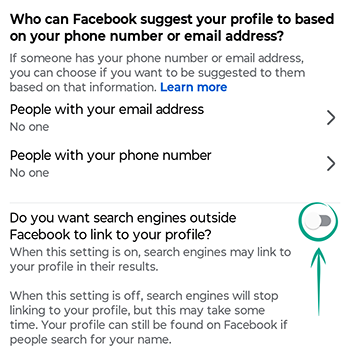
- Turn off Do you want search engines outside of Facebook to link to your profile?
What for: To prevent information leaks.
When you follow external links on Facebook, its browser saves that information. If somebody gains access to your device, they can use this information to draw conclusions about your habits and preferences.
To clear the browsing history in Facebook, along with temporary files:
- Tap the three-stripe icon in the upper right corner of the screen;
- Tap the cogwheel in the upper right corner;
- Select Browser under Preferences;
- Tap Clear next to Cookies and cache.
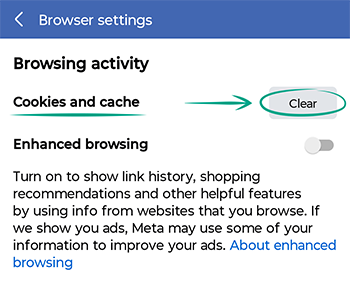
Downside: If you clear the cache regularly, you will have to enter login credentials every time on all sites in Facebook's built-in browser.
What for: Not to appear in ads.
By default, Facebook shows information about your ad-specific activity to all of your friends. For example, Facebook might broadcast that you like a company's page or share your plans to attend a sponsored event. You may not want some people to know what products and services you like.
To hide such information from other users:
- Tap the three-stripe icon in the upper right corner of the screen;
- Tap the cogwheel in the upper right corner;
- Tap Accounts center;
- Tap Ad preferences. You'll land on the Customize ads tab;
- Go to the Manage info tab;
- Select Social interactions under Other settings;
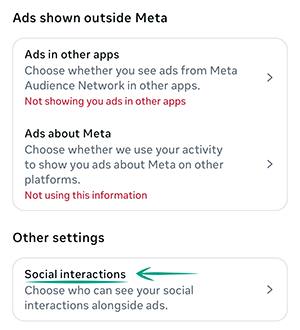
- Tap your account name;
- Under Who can your social interactions alongside ads for this account? select Only me.
How to get rid of unwanted notifications
What for: To avoid distractions.
By default, Facebook shows you notifications about all activities on the social network, including requests from apps, games, and nearby hangouts. If some notifications distract you, disable or mute them.
To turn off all push notifications at once:
- Open Settings on your device;
- Locate and select Facebook in the list of apps;
- Tap Notifications;
- Turn off Allow notifications: Facebook.
To manage the notifications:
- Tap the three-stripe icon in the upper right corner of the screen;
- Tap the cogwheel in the upper right corner;
- Select Notifications under Preferences;
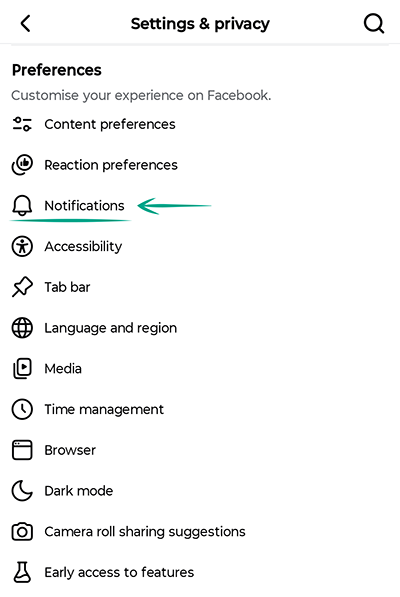
- Turn off push notifications, e-mail, and SMS for each category individually:
- Comments;
- Tags;
- Reminders;
- More activity about you;
- Updates from friends;
- Friend requests;
- People you may know;
- Birthdays;
- Groups;
- Reels;
- Events;
- Pages that you follow;
- Fundraisers and crises;
- Voting reminders;
- Messaging;
- Memories;
- Other notifications.
- To disable push notifications and sounds, tap Push under Where you receive notifications;
- Disable the options:
- Vibrate;
- Phone LED;
- Sounds;
- Tone;
- Logged-Out Notifications.
You can also customize your notification settings separately for e-mail and SMS:
- Tap the three-stripe icon in the upper right corner of the screen;
- Tap the cogwheel in the upper right corner;
- Select Notifications under Preferences;
- Tap Email;
- Turn off any categories you don't want to receive e-mail notifications for;
- Tap SMS;
- Turn off any categories you don't want to receive text alerts for.
To disable notifications from games and apps:
- Tap the three-stripe icon in the upper right corner of the screen;
- Tap the cogwheel in the upper right corner;
- Tap Apps and websites under Your activity and permissions;
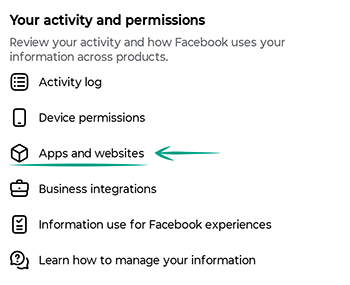
- Tap Turn off under Game and app notifications in Preferences;
- Tap Turn off again.
Note that Facebook also offers settings to control the frequency of your e-mail and SMS notifications. If you activate this option, you'll only get notifications that Facebook's algorithms consider important. You can choose Suggested notifications, which are based on the features you use most often, or Required notifications, which only cover account, privacy, and security matters. In reality, this setting doesn't affect the types of notifications you get or their frequency.
How to improve your Facebook experience
What for: To take control of your screen time on Facebook.
If you're concerned about spending too much time on Facebook, you can set a daily time limit for using the app. The app will alert you once you reach your limit.
To set a daily limit:
- Tap the three-stripe icon in the upper right corner of the screen;
- Tap the cogwheel in the upper right corner;
- Select Time management under Preferences;
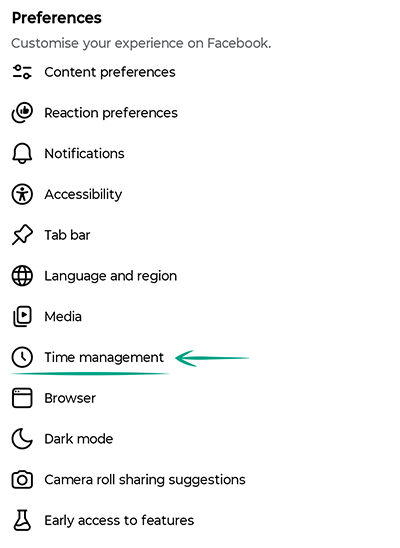
- Tap Daily limit;
- Select a suitable option:
- 15 minutes;
- 30 minutes;
- 45 minutes;
- 1 hour;
- 2 hours.
- Tap Save.
Note that the daily limit is only a recommendation and won't actually block your access to Facebook. You can simply dismiss the notification and continue using the app as before.
What for: To go to bed on time.
If you tend to lose track of time while using Facebook, you can set a timer that reminds you when it's time for bed. This helps you step away from Facebook and take a proper break from the screen.
To turn on sleep mode:
- Tap the three horizontal lines in the upper right corner of the screen;
- Tap the cogwheel in the upper right corner;
- Select Time management under Preferences;
- Tap Sleep mode;
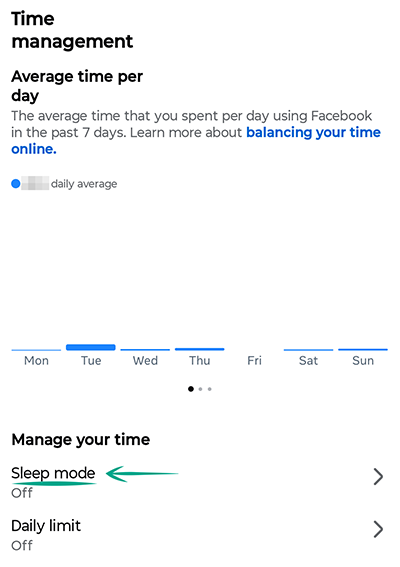
- Turn on Sleep mode;
- Set the Start time and End time;
- Select the days of the week when sleep mode will be active;
- Tap Save.